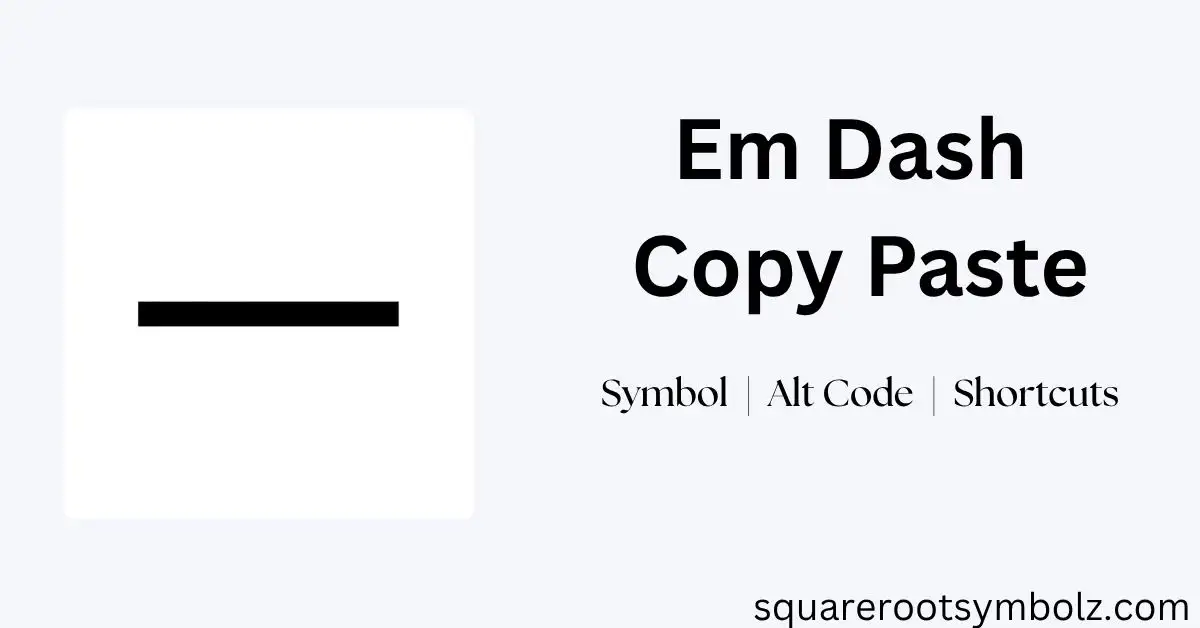
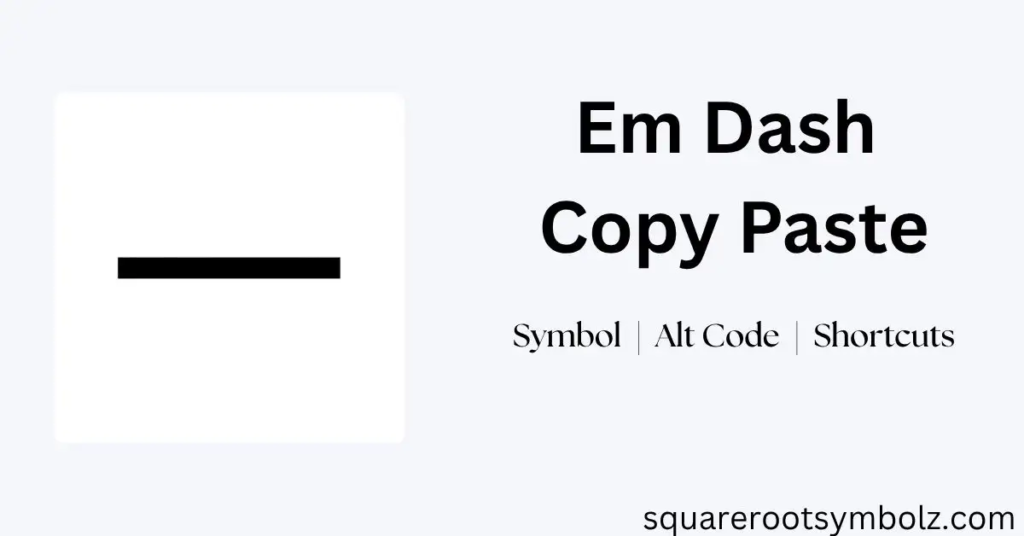
Em dash copy paste is easiest when you simply copy this character: —. The em dash is a punctuation mark used for pauses, interruptions, emphasis, parenthetical information, and sentence breaks. If you have ever searched for the long dash because your keyboard does not have a dedicated key, you are not alone.
The character is represented by Unicode U+2014 and can also be inserted through an Alt code, HTML entity, CSS code, Microsoft Word, or a Mac keyboard shortcut.
Whether you are writing an article, editing a school assignment, designing a webpage, or posting online, this guide gives you the fastest route to the character you need. You can copy — paste it immediately, then learn the keyboard and code methods so you will not have to search for it again.
Em Dash Details
The em dash — is the long dash used in typography and punctuation. Its Unicode code point is U+2014, while common representations include the HTML entity —, HTML decimal —, hexadecimal —, and CSS escape \2014. These formats allow the same punctuation character to be inserted in different environments.
If your immediate goal is simply em dash copy paste, use the character here:
—
Copy it with Ctrl + C on Windows or Command + C on Mac, then paste it wherever you need it with Ctrl + V or Command + V.
Unicode
The Unicode code point for the em dash is U+2014. Unicode gives the character a standardized identity so computers, operating systems, browsers, applications, and websites can recognize the same punctuation mark consistently.
HTML Entity
The named HTML entity for the character is:
—
You can use this when creating HTML documents and webpages. Browsers interpret the entity and display the em dash character —.
HTML Code
The decimal HTML code is:
—
The hexadecimal HTML version is:
—
Both produce the same em dash when correctly interpreted as HTML.
CSS Code
For CSS, the Unicode escape is:
\2014
A common use is inserting the character through the content property of a pseudo-element.
Hex Code
The hexadecimal Unicode value is:
2014
When working with Unicode-aware software, this identifies the em dash character. It is different from the hexadecimal codes used for the shorter hyphen and en dash.
Alt Code
On a Windows keyboard with a numeric keypad, the commonly used Alt code is:
Alt + 0151 → —
Keep Num Lock enabled, hold Alt, type 0151 on the numeric keypad, and release Alt. The exact behavior can depend on the application and keyboard configuration.
What is an Em Dash?
An em dash is a punctuation mark that creates a strong break within a sentence. It is longer than a hyphen and an en dash and can introduce an interruption, an aside, additional information, or emphasis.
For example:
The meeting was canceled again.
Here the em dash creates a stronger pause than an ordinary comma.
Another example:
My brother who lives in Texas is visiting next week.
The pair of em dashes surrounds additional information.
Usage Examples
The character is especially useful when a writer wants a noticeable pause without starting a new sentence.
Examples:
- I wanted to go but it started raining.
- She finally answered the phone had been ringing for minutes.
- There was only one option leave.
- My favorite book after all these years is still the same one.
The exact spacing around an em dash can vary according to the style guide being followed, so consistency matters.
Platform Input Guides
If copying the symbol is not convenient, you can enter an em dash directly using platform-specific methods. Windows users have several options, while Mac users can use a keyboard shortcut. Microsoft Word also provides Unicode and automatic conversion methods.
The best method depends on your device. For occasional writing, copy and paste is fastest. For frequent writing, learning your operating system’s shortcut can save time and prevent repeated searches.
Windows Input Methods
Windows users can insert the character with an Alt code or, in Microsoft Word and compatible Office applications, by converting its Unicode value. The ranking competitor specifically documents Alt + 0151, 2014 + Alt + X, and Word’s automatic conversion method.
1 Alt Code
To use the Windows Alt code:
- Turn on Num Lock.
- Hold the Alt key.
- Type 0151 on the numeric keypad.
- Release Alt.
The result should be:
—
This method is especially convenient on a desktop keyboard with a dedicated numeric keypad.
2 Unicode (Alt+X)
Microsoft Word provides another useful method:
- Type 2014.
- Press Alt + X.
- Word converts the code into —.
This method is useful when you are already working inside Word and want to insert Unicode characters without opening a symbol menu.
3 Word Method
Microsoft Word can also convert two hyphens into an em dash in certain typing situations. Type:
—
and continue according to Word’s automatic formatting behavior. The competitor page specifically identifies this as a Word method.
Em Dash Character Codes
For developers, writers, and designers, character codes are useful when copying the actual punctuation character is inconvenient. The most important value to remember is U+2014.
| Format | Em Dash Code |
| Symbol | — |
| Unicode | U+2014 |
| Decimal | 8212 |
| HTML | — |
| HTML Entity | — |
| Hex | — |
| CSS | \2014 |
| Windows | Alt + 0151 |
The different codes do not represent different em dashes; they are different ways of expressing the same Unicode character in different environments.
Em Dash Code Examples
If you are working on a webpage or stylesheet, you can insert the em dash directly or use its character code. This is particularly useful when building websites, applications, or documents where special-character encoding matters.
HTML Example
You can write the em dash directly:
<span>Writing with an em dash — is easy.</span>
Or use its decimal entity:
<span>Writing with an em dash — is easy.</span>
You can also use:
—
These methods display the em dash when processed as HTML.
CSS Code
A CSS pseudo-element can use the Unicode escape:
span::before {
content: “\2014”;
}
The \2014 escape identifies the em dash character in CSS.
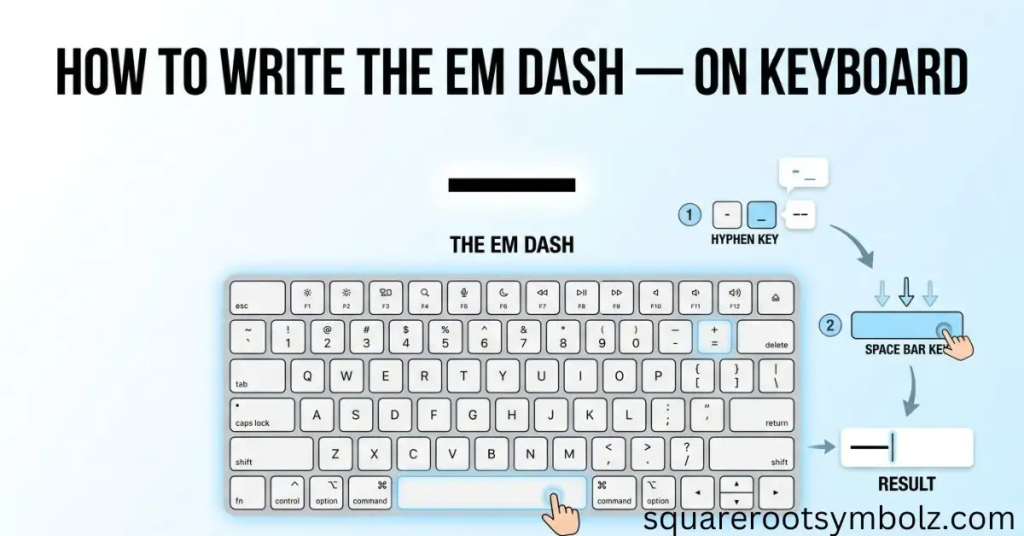
How to Write the Em Dash — on Keyboard
If you have a Windows keyboard without an easy dedicated key, the numeric keypad method is one option. Hold Alt and type 0151 to produce . Some laptops do not have a full numeric keypad, so the method may not be practical on every device.
On Mac, a commonly used shortcut is:
Option + Shift + Hyphen → —
This is one of the quickest methods for Mac users who frequently write with em dashes.
For occasional use, however, there is nothing wrong with simply copying:
and pasting it into your document.
Related Symbols
The em dash is often confused with other horizontal punctuation marks. They may look similar at a glance, but their functions are different. Understanding these differences helps you choose the correct character instead of using a regular hyphen for every situation.
En Dash
The en dash (–) is shorter than an em dash and is commonly used for ranges.
Example:
Pages 10–20
The em dash, by comparison, is generally associated with breaks, interruptions, or parenthetical information.
Hyphen
The hyphen (-) is the shortest of these common dash-like characters. It is primarily used to connect words or parts of compound terms.
Examples:
- well-known
- user-friendly
- long-term
A hyphen is not simply a shorter version of the em dash.
Horizontal Bar
The horizontal bar (―) is another Unicode character with a different identity from the em dash. It may appear visually similar, but Unicode treats the characters as separate characters.
Figure Dash
The figure dash (‒) is another dash character used in specific typographic contexts. It should not automatically be substituted for an em dash simply because the two look similar.
Complete Guide to Em Dash Symbol
The em dash is most useful when you want a stronger break than a comma but do not necessarily want to end the sentence. It can create rhythm, emphasis, interruption, or an aside.
Good typography is less about using the character everywhere and more about using it deliberately.
When to Use Em Dash
An em dash can perform several grammatical jobs.
For a stronger pause:
I knew the answer I just couldn’t explain it.
For parenthetical information:
The new laptop my first in years finally arrived.
For an explanation:
There was only one problem the battery was dead.
For interruption:
“But I thought you said”
The character gives the reader a visual signal that something important is happening inside the sentence.
Em Dash vs Other Dashes
| Character | Name | Typical Use |
| – | Hyphen | Compound words |
| – | En dash | Ranges |
| — | Em dash | Sentence breaks, pauses, emphasis |
| ― | Horizontal bar | Specialized typography |
The most important distinction is that hyphen, en dash, and em dash are separate characters with different functions.
Conclusion
Em dash copy paste does not have to be complicated. If you need the character immediately, copy and paste it wherever you are writing. If you use it frequently, remember the most useful identifiers: U+2014, Alt + 0151 on Windows, and Option + Shift + Hyphen on Mac. The same character can also be inserted with HTML, CSS, and Unicode methods.
The bigger lesson is knowing which dash you actually need. Use for strong sentence breaks, for many ranges, and – for connecting words. Once those three characters become familiar, finding and using the right punctuation mark becomes much easier.
FAQs
What is an em dash and how is it different from a hyphen?
An em dash is a long punctuation mark used for breaks, pauses, interruptions, and emphasis. A hyphen – is shorter and primarily connects words.
Why can’t I just use two hyphens instead of an em dash?
Two hyphens — are not technically the same Unicode character as an em dash. Some applications automatically convert them, but if you need the actual punctuation character, use .
How do I type an em dash on my keyboard?
On Windows, try Alt + 0151 with a numeric keypad. In Microsoft Word, type 2014 and press Alt + X. On Mac, use Option + Shift + Hyphen.
When should I use an em dash instead of commas or parentheses?
Use an em dash when you want a stronger visual or grammatical break. Commas create a lighter pause, while parentheses usually make additional information feel more separate.
Are there any style guide rules for using em dashes?
Yes. Different style guides can differ, especially about spacing. The safest approach is to follow the style guide required for your publication and remain consistent.
Can I use em dashes in formal writing and academic papers?
Yes. Em dashes can appear in formal writing, but they should be used intentionally and according to the relevant style guide.
What’s the difference between em dash, en dash, and hyphen?
The hyphen (-) connects words, the en dash (–) commonly indicates ranges, and the em dash (—) creates a stronger break within a sentence.

I’m the creator of SquareRootSymbolz.com, where I publish easy-to-understand guides on symbols, Unicode characters, Alt codes, keyboard shortcuts, and copy-and-paste text symbols. My goal is to provide accurate, well-researched, and user-friendly content that helps readers quickly find the information they need.