Square Root Symbol Copy and Paste
Dicover Square Root Symbol Copy and Paste Plus Alt Code Keyboard Shortcuts and Unicode
Quick Answer: The Square Root Symbol (√), also known as the radical symbol, represents the principal square root of a number. Its Unicode is U+221A. You can copy and paste it here: √. It can be typed using keyboard shortcuts, inserted through document editors, or added with HTML and Unicode codes.
The Square Root Symbol (√) is one of the most recognized mathematical symbols used in mathematics, engineering, science, programming, and education. Whether you’re solving equations, writing a research paper, preparing a presentation, or building a website, knowing how to type and use the square root sign correctly can save time.
Many users search for the square root symbol copy and paste, Alt Code, Unicode, keyboard shortcut, or HTML code because the symbol is not available on most standard keyboards. This guide explains everything in one place, including copy-and-paste, shortcuts for every device, code references, practical examples, and troubleshooting tips.
What Is the Square Root Symbol (√)
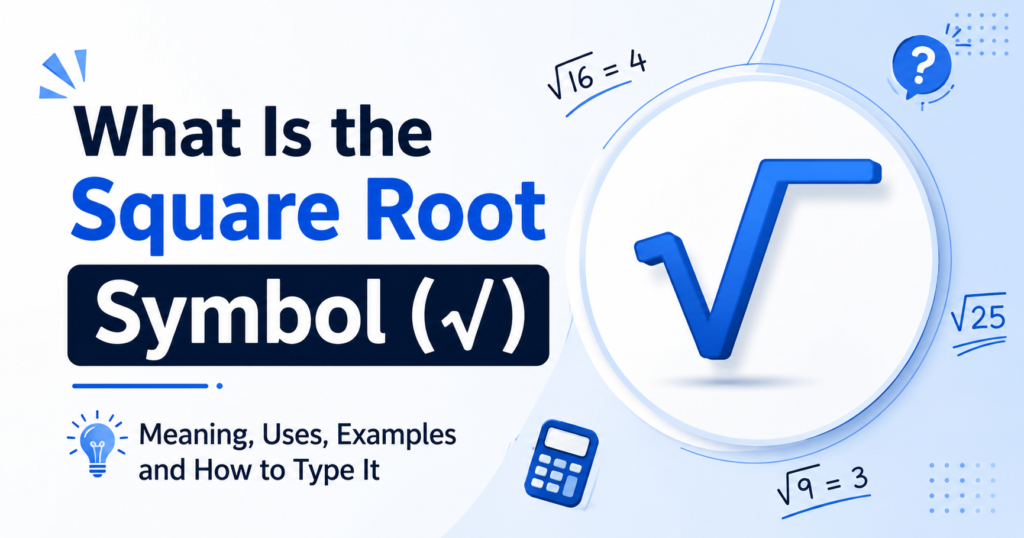
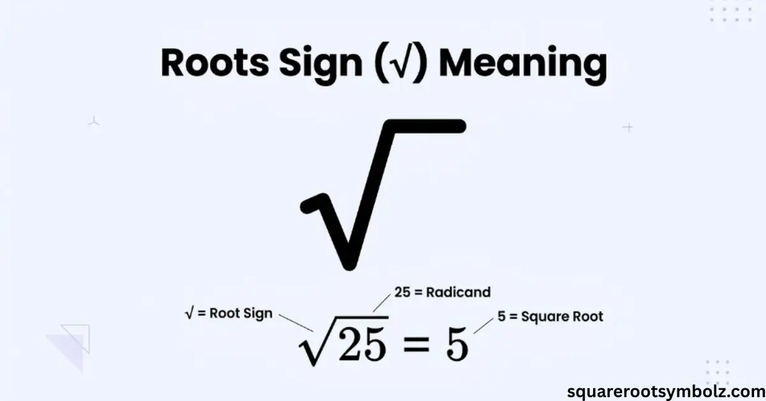
The Square Root Symbol (√) is a mathematical symbol used to indicate the square root of a number. It tells you to find the value that, when multiplied by itself, equals the original number.
For example:
- √4 = 2
- √9 = 3
- √25 = 5
What Does the Square Root Symbol Mean?
The symbol √ means “take the principal square root.” If a number is written inside the radical, the result is the positive value whose square equals that number.
For example:
√49 = 7 because 7 × 7 = 49.
Why Is It Called the Radical Symbol?
The square root sign is also called the radical symbol. The word radical comes from the Latin word radix, meaning root. Symbols such as √, ∛ (cube root), and ∜ (fourth root) all belong to the radical family.
Quick Example
| Expression | Result | Explanation |
| √16 | 4 | 4 × 4 = 16 |
| √36 | 6 | 6 × 6 = 36 |
| √81 | 9 | 9 × 9 = 81 |
Square Root Symbol Copy and Paste
If you’re looking for a quick way to use the symbol, simply copy it below.
Ready-to-Copy Square Root Symbol
√
Copy and paste it into:
- Microsoft Word
- Google Docs
- Microsoft Excel
- PowerPoint
- Google Sheets
- Outlook
- Emails
- Websites
- Social media posts
- Homework and assignments
Unicode Version
| Property | Value |
| Symbol | √ |
| Unicode Name | Square Root |
| Unicode | U+221A |
| Category | Mathematical Operator |
Plain Text Version
√
If you’re building a website, adding a Copy button beside the symbol can improve usability and increase user engagement.
Common Uses of the Square Root Symbol
The square root sign is commonly used in:
- Mathematics
- Algebra
- Geometry
- Engineering
- Physics
- Statistics
- Computer Science
- Education
- Financial calculations
- Scientific research
How to Type the Square Root Symbol on Any Device

Typing the √ symbol depends on your operating system and keyboard. Here are the easiest methods for every major platform.
Windows Keyboard Shortcut
Method 1: Alt Code
If your keyboard has a numeric keypad:
- Turn on Num Lock.
- Hold the Alt key.
- Type 251 on the numeric keypad.
- Release the Alt key.
The √ symbol will appear.
Method 2: Character Map
- Open Character Map from the Start menu.
- Search for the square root symbol.
- Click Select.
- Choose Copy.
- Paste it into your document.
Mac Keyboard Shortcut
Mac users can insert the symbol using the Character Viewer.
- Press Control + Command + Space.
- Search for Square Root.
- Select √ to insert it.
You can also use the Equation Editor in applications such as Pages and Microsoft Word.
Chromebook
Chromebooks do not have a built-in keyboard shortcut for the square root symbol.
Instead, you can:
- Copy and paste √
- Use Insert → Special Characters in Google Docs
- Search for “Square Root” in the special character panel
Linux
On Linux, the method depends on your desktop environment.
Common options include:
- Character Map
- Unicode input
- Compose Key (if enabled)
If you frequently use mathematical symbols, enabling the Compose Key can make inserting special characters faster.
Android
Most Android keyboards don’t include the square root symbol by default.
You can:
- Copy and paste √
- Install a keyboard that supports mathematical symbols
- Use note or clipboard apps to save frequently used symbols
iPhone & iPad
The iOS keyboard doesn’t include √ directly.
The easiest options are:
- Copy and paste the symbol
- Create a Text Replacement shortcut
Example:
Typing:
sqrt
Automatically becomes:
√
This saves time if you use the symbol regularly.
How to Insert the Square Root Symbol in Popular Apps
Different applications offer built-in tools for inserting mathematical symbols.
Microsoft Word
- Open the Insert tab.
- Click Symbol.
- Select More Symbols.
- Choose √.
- Click Insert.
You can also use Word’s Equation feature for mathematical formulas.
Google Docs
- Select Insert.
- Click Special Characters.
- Search for Square Root.
- Click √ to insert it.
This is the easiest method for Google Docs users.
Microsoft Excel
Excel supports several methods:
- Insert Symbol
- Equation Editor
- Copy and Paste
- Unicode input (where supported)
The square root symbol is commonly used in engineering sheets, formulas, and educational workbooks.
Microsoft PowerPoint
To insert √ in PowerPoint:
- Go to Insert.
- Select Symbol.
- Choose the square root symbol.
- Click Insert.
It’s useful for presentations involving mathematics, engineering, or science.
Frequently Asked Questions
What is the square root symbol?
The radical sign, representing the principal square root of a number. Its Unicode is U+221A.
What does the square root symbol mean in an equation?
Take the principal square root: the positive value whose square equals the number, because 7 times 7 is 49.
Why is it called the radical symbol?
It comes from the Latin word radix, meaning root — the operation finds the root of a number.
How do you insert the symbol in Word and Google Docs?
In Word, use Insert Symbol or type 221A followed by Alt+X. In Google Docs, use Insert, then Special characters, and search for square root.

I’m the creator of SquareRootSymbolz.com, where I publish easy-to-understand guides on symbols, Unicode characters, Alt codes, keyboard shortcuts, and copy-and-paste text symbols. My goal is to provide accurate, well-researched, and user-friendly content that helps readers quickly find the information they need.