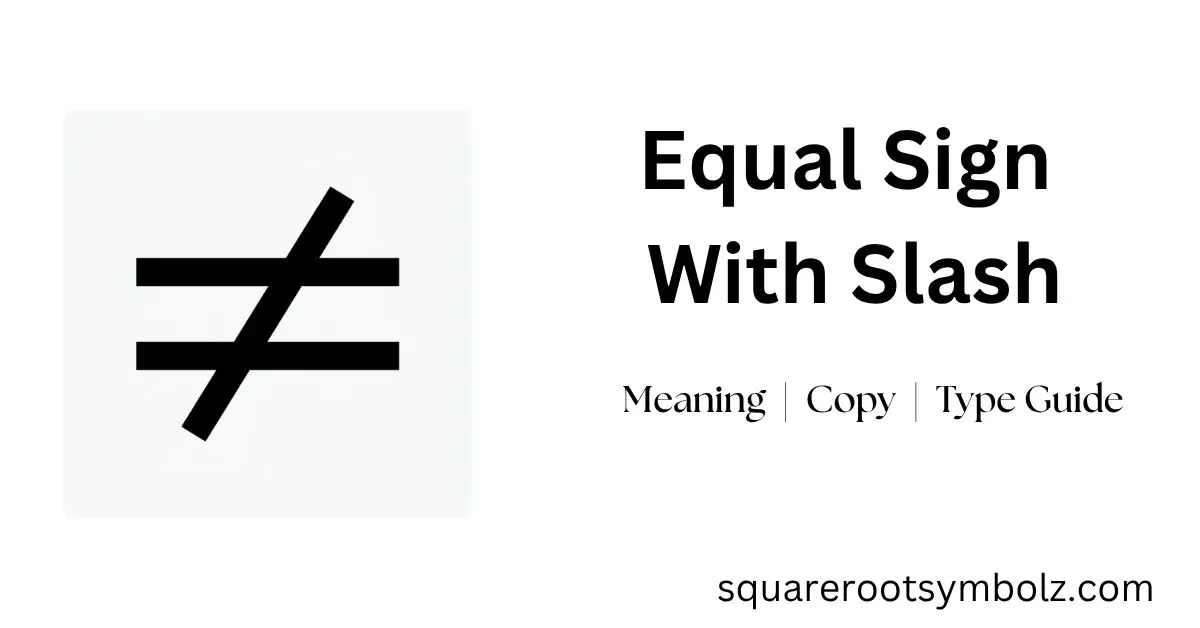
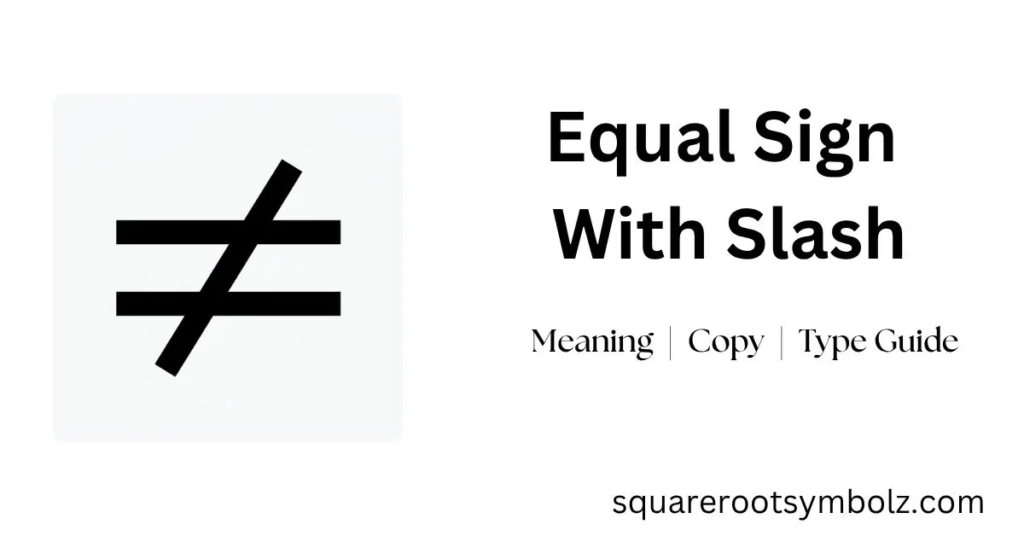
The equal sign with slash is ≠, the mathematical symbol meaning “not equal to.” If you have been searching for this character because you cannot find it on your keyboard, you are not alone. The symbol is common in mathematics, algebra, logic, comparison, Excel, Word, HTML, and programming, but it does not have a dedicated key on most standard keyboards.
This guide gives you the character first, then explains its meaning, Unicode value, Alt code, keyboard shortcuts, copy-and-paste methods, and software-specific options. Whether you are a student solving an equation or preparing a professional spreadsheet, you will find the quickest method here.
Copy Equal Sign With Slash Symbol Text
≠
That is the not equal to symbol. You can copy it directly and paste it into a document, email, spreadsheet label, website, presentation, or social post. The character represents a relationship in which the two values, expressions, or quantities are different. For example, 8 ≠ 10 means that 8 is not equal to 10.
Copying the character is usually the fastest solution when you only need it occasionally. However, if you use math notation, keyboard shortcuts, Unicode characters, Excel, Word, or HTML regularly, learning one insertion method can save you from repeatedly searching for the symbol.
Meaning of the Equal Sign With Slash Symbol
The equal sign with slash ≠ means “not equal to.” It tells the reader that the values or expressions on either side do not have the same value. For example, 15 ≠ 20 states that 15 and 20 are different. In algebra, x ≠ 0 means that x cannot be zero.
The slash changes the meaning of the ordinary equality sign. While = establishes equality, ≠ establishes inequality. This distinction matters in equations, mathematical proofs, programming concepts, logic, and data comparison. The symbol is therefore not simply a decorative version of =; it communicates a specific mathematical relationship.
Equal Sign vs. Not Equal Sign
| Symbol | Name | Meaning | Example |
| = | Equal sign | Values are equal | 5 = 5 |
| ≠ | Not equal to | Values are different | 5 ≠ 7 |
| ≈ | Approximately equal | Values are close | π ≈ 3.14 |
| ≡ | Identical to | Identical/equivalent relationship depending on context | A ≡ B |
Cuemath similarly distinguishes the ordinary equal sign from the slashed version and identifies ≠ as the unequal sign.
Equal Sign With Slash Symbol Information Table
| Property | Information |
| Symbol | ≠ |
| Official Unicode name | NOT EQUAL TO |
| Unicode | U+2260 |
| Decimal | 8800 |
| HTML decimal | ≠ |
| HTML hex | ≠ |
| HTML entity | ≠ |
| CSS escape | \2260 |
| LaTeX | \neq or \ne |
| Mathematical meaning | Not equal to |
| Category | Mathematical Operators |
The Unicode value is U+2260, while the decimal representation is 8800. Symbol Hippo also lists the HTML, hexadecimal, CSS, and keyboard-related representations for the character.
One useful distinction is between the visual symbol and a software’s internal comparison operator. For example, Excel displays or accepts ≠ as a text character, but its formula language uses <> to perform a “not equal” comparison.
How to Type the Equal Sign With Slash Symbol
Most standard keyboards do not have a dedicated key for ≠, so you normally insert it through a shortcut, symbol menu, character viewer, or copy-and-paste method. The best option depends on your operating system and application.
On modern Windows systems, the built-in symbols panel can be convenient. In Microsoft Word, Unicode conversion is particularly useful. On macOS, the familiar shortcut is Option + =, while Character Viewer provides a visual alternative.
Using the Symbol Dialog Box
In Microsoft Office, open the Insert tab and choose Symbol or More Symbols. Search for the not-equal character or enter its Unicode value, 2260, depending on the application. Select ≠, click Insert, and close the dialog. This method is useful when you do not want to memorize a keyboard shortcut.
Using Keyboard Shortcuts
On a Mac, press Option + = to produce ≠. On Windows, traditional Alt-code behavior can vary by application, but Alt + 8800 is commonly used with the numeric keypad. Microsoft Word also supports 2260 + Alt + X, which converts the Unicode value into the character.
The Equal Sign With Slash Alt Code (Keyboard Shortcut)
The commonly cited Windows Alt code for ≠ is Alt + 8800 using the numeric keypad. Turn on Num Lock, hold Alt, type 8800, and release Alt. However, this should not be treated as a universal shortcut for every Windows application.
Microsoft Word provides another reliable Unicode technique: type 2260, then press Alt + X. Word converts the hexadecimal Unicode value into ≠. This method is particularly useful for documents containing many mathematical characters because you can work directly with Unicode values.
| Platform or app | Method |
| Windows | Alt + 8800 with numeric keypad |
| Word | 2260 + Alt + X |
| Mac | Option + = |
| Google Docs | Insert → Special Characters |
| HTML | ≠ or ≠ |
| LaTeX | \neq |
| Excel formula | Use <> |
Insert Equal Sign With Slash Symbol in Word/Excel/PowerPoint
Microsoft Office applications provide built-in symbol insertion tools. In Word, Excel, or PowerPoint, go to Insert → Symbol → More Symbols, locate ≠, and insert it. You can search using the character’s Unicode value, 2260, to find it more quickly.
There is an important Excel distinction: ≠ is a visual text character, while <> is Excel’s not-equal operator inside formulas. For example, =A1<>B1 checks whether the values in A1 and B1 are different. If you need the actual glyph in a heading or report label, insert or paste ≠ as text.
Using UNICODE or CHAR Functions
In Excel, the Unicode-based function =UNICHAR(8800) returns the ≠ character. This is useful when you need to generate the symbol dynamically rather than manually inserting it. It can be especially helpful in reports, labels, dashboards, or automated worksheets.
Adding Equal Sign With Slash Symbol in HTML/CSS
For HTML, you can insert the character directly or use a character reference. Common options include ≠, ≠, and ≠. These references allow browsers to render the same not-equal character without requiring you to paste the glyph directly into the source code.
For CSS, the Unicode escape is \2260. This is useful when generating the symbol through CSS content or other styling-related techniques. For technical websites, using the correct Unicode representation helps preserve semantic accuracy and ensures the intended mathematical character is rendered consistently.
≠
or:
≠
Hexadecimal:
≠
CSS:
content: “\2260”;
Common Mistakes or Tips
The biggest mistake is confusing ≠ with the operators used by software. The symbol means “not equal to” in mathematical writing, but Excel uses <> inside formulas, while many programming languages use !=. Simply replacing those operators with the visual character can cause a formula or program to fail.
Another common issue is an unsupported font. If ≠ appears as a square or missing character, switch to a Unicode-compatible font such as Arial, Calibri, Segoe UI, or another modern math-capable font. If a shortcut fails, use the application’s Symbol dialog or Character Map instead.
Use Cases for the Equal Sign With Slash Symbol
The ≠ symbol appears anywhere people need to communicate that two values or conditions differ. In mathematics, it can express restrictions such as x ≠ 0. In spreadsheets, it can make report labels easier to understand, while in educational material it provides familiar mathematical notation.
It is also useful in professional documentation. For example, a dashboard might label a comparison Expected ≠ Actual, immediately signaling that the displayed values differ. The same character can appear in equations, presentations, technical documents, web pages, and explanatory content where a clear visual representation of inequality is helpful.
Conclusion
The equal sign with slash ≠ is the standard not-equal-to symbol, used to show that two values or expressions are different. Once you know its Unicode value U+2260, decimal code 8800, and the common insertion methods, finding or typing it becomes much easier. For quick use, simply copy ≠; for Microsoft Word, try 2260 + Alt + X; on Mac, use Option + =; and in Excel formulas, remember to use <> instead.
FAQ Section
What does an equal sign with a slash mean?
An equal sign with a slash, ≠, means “not equal to.” It indicates that two values, expressions, or quantities are different.
What is the Unicode for the equal sign with slash?
The Unicode code point is U+2260, officially named NOT EQUAL TO. Its decimal value is 8800.
What is the Alt code for ≠?
The commonly used Windows Alt code is Alt + 8800 with the numeric keypad. Availability can vary between applications.
How do I type ≠ on a Mac?
Press Option + = on a Mac keyboard. You can also use Character Viewer to search for “not equal.”
How do I type ≠ in Microsoft Word?
Type 2260, then press Alt + X. Word converts the Unicode value into ≠.
What is the not-equal operator in Excel?
Excel formulas use <> for “not equal to,” rather than the visual ≠ character. For example, =A1<>B1 compares two cells.
What is the HTML code for ≠?
You can use ≠, ≠, or ≠ in HTML.
Is ≠ the same as !=?
They communicate the same basic “not equal” concept, but they are represented differently. ≠ is the Unicode mathematical character, while != is a programming-style operator used by many languages.

I’m the creator of SquareRootSymbolz.com, where I publish easy-to-understand guides on symbols, Unicode characters, Alt codes, keyboard shortcuts, and copy-and-paste text symbols. My goal is to provide accurate, well-researched, and user-friendly content that helps readers quickly find the information they need.