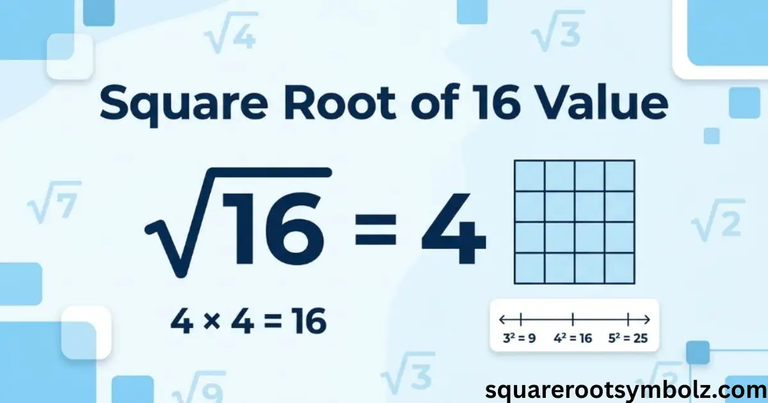
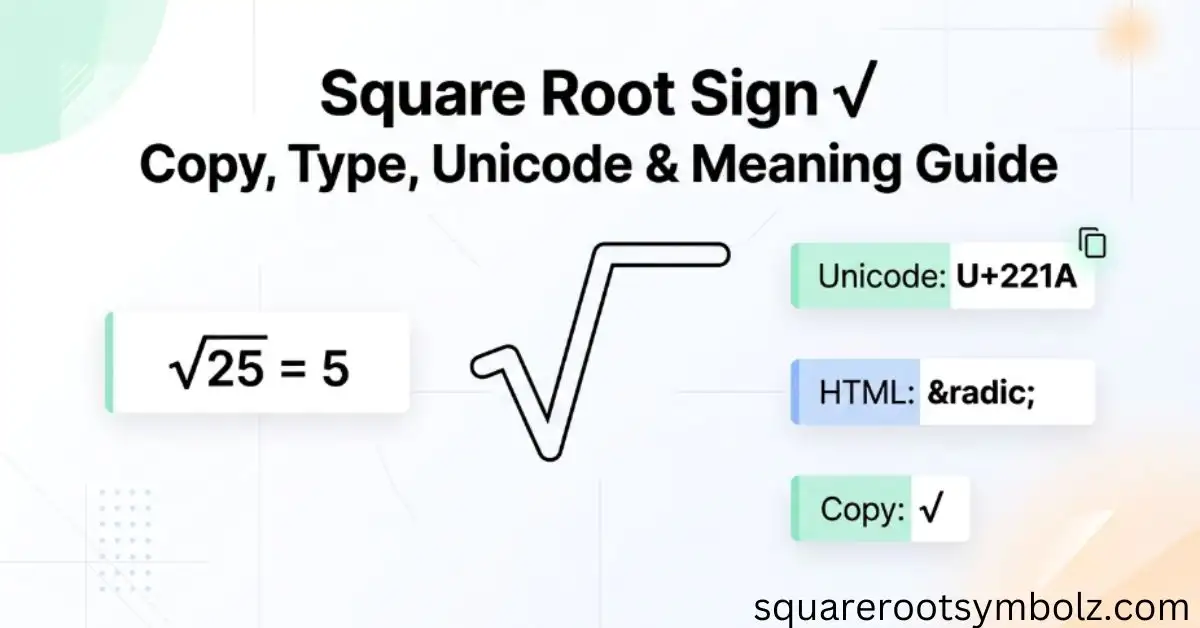
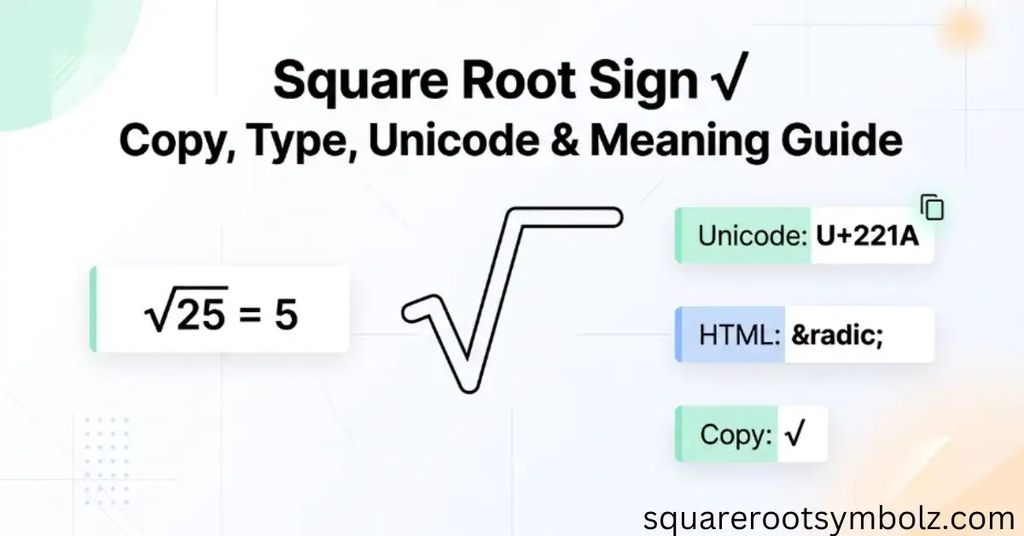
The square root sign is √, also called the radical sign. You can copy it here: √. Its Unicode code point is U+221A, while common ways to enter it include Windows Alt codes, Mac shortcuts, Word, Google Docs, mobile keyboards, HTML, and LaTeX.
If you’ve ever needed the symbol for homework, a spreadsheet, Word document, website, or social post and couldn’t find it on your keyboard, you’re not alone. After working with mathematical notation and digital symbols, I’ve found that the confusion usually comes from mixing up the character, the complete radical, the radicand, and the typing method. This guide separates them clearly.
Copy and Paste the Square Root Sign
Here is the character most people are looking for:
√
You can copy √ and paste it into a document, message, spreadsheet, website, or social media post. The character is the Unicode SQUARE ROOT character at U+221A. The HTML named entity is √, while the numeric HTML entity is √.
| Property | Square root sign |
| Symbol | √ |
| Name | Square Root |
| Unicode | U+221A |
| Decimal | 8730 |
| HTML | √ |
| HTML decimal | √ |
| CSS escape | \221A |
| Meaning | Square-root/radical notation |
The symbol itself is useful for inline mathematical notation, but there is an important technical distinction. A plain Unicode √ does not automatically create a horizontal bar over everything that follows it. Proper mathematical typesetting uses a radical structure whose bar stretches over the radicand.
How to Type the Square Root Sign on Any Device
The easiest method depends on your operating system and application. On Windows, the commonly documented shortcut is Alt + 251 using the numeric keypad. On Mac, the shortcut is Option + V. Linux can use Unicode input, while mobile users may use a symbols keyboard or copy/paste.
| Device or app | Method |
| Windows | Alt + 251 |
| Mac | Option + V |
| Linux | Ctrl + Shift + U, then 221A |
| Word | 221A + Alt + X |
| Google Docs | Insert → Special Characters |
| Android | Symbols keyboard / copy |
| iPhone/iPad | Copy or text replacement |
| HTML | √ |
| LaTeX | \sqrt{} |
| Excel calculation | =SQRT() |
Type the Square Root Sign on Windows
On Windows, activate Num Lock, place the cursor where you need the character, hold Alt, and type 251 on the numeric keypad. Release Alt and √ should appear. If your keyboard has no numeric keypad, Character Map or the Windows symbol panel provides alternatives.
Type the Square Root Sign on Mac
On a Mac or MacBook, press Option + V to enter √. For additional root characters or less common mathematical notation, macOS Character Viewer can be opened with Control + Command + Space and searched for the required character.
Type the Square Root Sign in Microsoft Word
Word offers two different approaches. For the Unicode character, type 221A and press Alt + X. For a properly formatted mathematical radical, use Insert → Equation or Alt + =, then insert a radical structure. The second method is better for expressions containing multiple terms.
Type the Square Root Sign in Google Docs
In Google Docs, go to Insert → Special characters, choose the mathematical symbol category, and search for square root. This inserts the Unicode character directly. For full mathematical expressions, Google Docs’ equation tools can provide more appropriate formatting than ordinary text.
Type the Square Root Sign on Android and iPhone
Android keyboards vary by manufacturer. Tech Pilipinas reports that the stock Gboard symbols layout can provide √, while other keyboards may require copying it. iPhone and iPad users can copy √ and create a text replacement shortcut such as sqrt for faster repeated use.
Type the Square Root Sign on Linux
Linux systems can use Unicode input in many applications: press Ctrl + Shift + U, enter 221A, and press Enter. This produces √ when the application supports the Unicode input method.
The Radical Sign and the Bar That’s Missing
Here is a subtle detail that many symbol pages overlook: √ is the Unicode radical character, but a complete mathematical square-root expression also includes a horizontal bar called the vinculum. In properly typeset mathematics, that bar extends over the entire radicand—the expression being placed under the root.
For example, writing √(a + b) in plain text makes it clear that the complete expression belongs under the root. In an equation editor, however, the radical automatically stretches over a + b. That difference matters when you’re creating professional mathematics, because the visual structure communicates exactly which terms are being operated on.
How to Show Exactly What’s Under the Square Root Sign
Plain text cannot automatically stretch a Unicode √ over several following characters. For a simple number, √16 is normally clear. For an expression such as the square root of a + b, parentheses provide a reliable plain-text solution: √(a + b).
| Where you’re writing | Recommended method | Example |
| Chat/message | Parentheses | √(a + b) |
| Word/Docs | Equation editor | Radical structure |
| LaTeX | \sqrt{} | \sqrt{a+b} |
| HTML | MathML / suitable math markup | Structured radical |
| Simple text | √ | √16 |
If you’re preparing a school assignment, technical document, or published mathematical content, don’t force a long expression into ordinary text when an equation editor is available. A structured radical preserves the relationship between the root sign and radicand, making the expression easier to understand and less likely to be misread.
The Square Root Sign Is Not a Checkmark
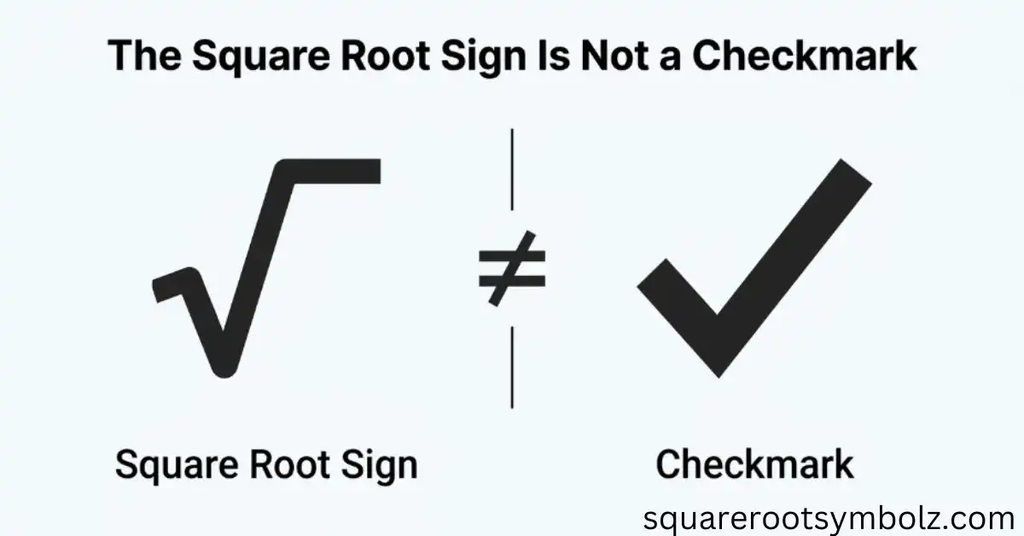
The square root sign √ and the checkmark ✓ may look similar, particularly in handwriting, but they are different Unicode characters with completely different purposes. √ represents mathematical radical notation, while ✓ is used as a check or confirmation mark.
| Character | Name | Unicode | Main use |
| √ | Square root | U+221A | Mathematics |
| ✓ | Checkmark | U+2713 | Confirmation |
| ✔ | Heavy checkmark | U+2714 | Confirmation |
This distinction becomes important when you’re designing documents, websites, forms, or symbol lists. If you need to show that an item is complete, use ✓. If you’re writing an equation such as √25 = 5, use √. They may resemble each other, but they belong to different semantic categories.
Cube Roots, Fourth Roots, and nth Roots With the Square Root Sign
The square root is one member of the broader family of radicals. The cube root is ∛, Unicode U+221B, while the fourth-root character is ∜, Unicode U+221C. Higher roots generally use an index placed at the radical, such as the 5th root or nth root.
| Root | Symbol | Unicode | Example |
| Square root | √ | U+221A | √25 = 5 |
| Cube root | ∛ | U+221B | ∛27 = 3 |
| Fourth root | ∜ | U+221C | ∜81 = 3 |
| nth root | ⁿ√ | Varies | ⁿ√x |
The square root is essentially the second root, but the index 2 is normally omitted. A cube root asks which number multiplied by itself three times produces the radicand. Similarly, an nth root asks which value raised to the nth power produces that number.
The Square Root Sign in Code and Spreadsheets
Programming languages generally do not use √ as the computational operator. Instead, they provide functions such as Math.sqrt(x) in JavaScript and math.sqrt(x) in Python. Spreadsheets similarly calculate roots with functions such as =SQRT(9), which returns 3.
| Environment | Square-root approach |
| Python | math.sqrt(x) |
| JavaScript | Math.sqrt(x) |
| C | sqrt(x) |
| Excel | =SQRT(A1) |
| Google Sheets | =SQRT(A1) |
| LaTeX | \sqrt{x} |
| Unicode text | √ |
This distinction is crucial: displaying √ and calculating a square root are not the same task. For example, UNICHAR(8730) in Excel creates the printed symbol, whereas SQRT(9) performs a calculation. One produces a character; the other evaluates a mathematical function.
The Square Root Sign in HTML and CSS
For HTML, the named entity √ or numeric entity √ produces √. CSS can reference the character using the Unicode escape \221A. If you need a genuine stretching radical rather than a standalone character, structured mathematical markup such as MathML is more appropriate.
The Square Root Sign in LaTeX
LaTeX uses the command \sqrt{} to create a properly formatted square-root expression. For example, \sqrt{25} renders a radical containing 25, while \sqrt{x+1} creates a bar that covers the complete expression. This is preferable to plain √ when writing academic or technical mathematics.
Square Root Sign Conclusion
The square root sign √ is much more than a character to copy and paste. It connects mathematical notation, Unicode, keyboard shortcuts, radical expressions, equation editors, HTML, LaTeX, spreadsheets, and programming. The Unicode character is U+221A, while a properly typeset radical adds a horizontal vinculum over the radicand.
If you simply need the character, copy √. If you need a complete mathematical expression, use an equation editor or \sqrt{} in LaTeX. And if you are typing it repeatedly, save the appropriate shortcut for your device. That small distinction will save you a surprising amount of frustration.
FAQ Section
How do I type the square root sign?
On Windows, use Alt + 251 with the numeric keypad. On Mac, press Option + V. In Word, type 221A and press Alt + X. You can also copy √ directly.
What is the Unicode for the square root sign?
The Unicode code point for √ is U+221A, with decimal value 8730.
What is the Alt code for √?
The commonly used Windows numeric keypad shortcut is Alt + 251. Some applications also support Alt + 8730 for the decimal Unicode value.
Is √ a radical sign?
Yes. √ is the Unicode square-root character and is commonly called the radical sign. In complete mathematical typesetting, the radical also includes the horizontal vinculum over the radicand.
What is the HTML code for the square root sign?
Use √ or √ to produce √ in HTML.
What is the difference between √ and ✓?
√ is the mathematical square-root/radical character, while ✓ is a checkmark used for confirmation or completion. Their Unicode values and purposes are different.
How do I type √ in Microsoft Word?
For the standalone Unicode character, type 221A and press Alt + X. For a full mathematical radical, use Alt + = to open Word’s equation editor and insert a radical structure.
How do I type √ in Google Docs?
Use Insert → Special characters, then search for square root. You can also use Google Docs’ equation tools for properly formatted mathematical expressions.
How do I type the square root sign on a Mac?
Press Option + V. This inserts √ directly in supported Mac applications.
How do I type the square root sign on Android?
The exact method depends on your keyboard. Some Android keyboards expose √ through their symbols layout; otherwise, copying and pasting the character is a reliable option.
How do I type √ in LaTeX?
Use \sqrt{}. For example, \sqrt{25} creates a properly formatted square-root expression.

I’m the creator of SquareRootSymbolz.com, where I publish easy-to-understand guides on symbols, Unicode characters, Alt codes, keyboard shortcuts, and copy-and-paste text symbols. My goal is to provide accurate, well-researched, and user-friendly content that helps readers quickly find the information they need.