The fastest excel diameter symbol method on Windows is usually Alt + 0216 for Ø, while Excel’s Symbol dialog and copy-paste methods provide easy alternatives. If you specifically need the Unicode diameter sign ⌀, however, you should distinguish it from Ø, because they are different characters. Excel supports symbol insertion through its built-in Symbol command.
If you’ve ever stared at an Excel cell wondering why there isn’t a diameter key on your keyboard, you’re not alone. Engineers, designers, manufacturers, students, and spreadsheet users frequently need diameter notation, special characters, Alt codes, CHAR formulas, or symbol insertion for measurements. The good news is that Excel gives you several practical ways to get the character exactly where you need it.
How to Insert Diameter Symbol in Excel
Excel doesn’t provide a dedicated diameter key on a standard keyboard, so you need an alternative input method. The most useful options are copy and paste, an Alt code, the Symbol dialog, the CHAR function, Character Map, or AutoCorrect. Microsoft confirms that Excel supports inserting symbols through the Insert tab.
For everyday spreadsheet work, the best method depends on your keyboard. A full Windows keyboard with a numeric keypad makes Alt + 0216 convenient. A laptop may make the Symbol dialog or copy-paste easier. If you repeatedly use the character in engineering or manufacturing worksheets, AutoCorrect can save even more time.
Copy and Paste the Diameter Symbol into Excel
The simplest option is to copy the character you need and paste it into your worksheet. For the commonly used O-with-stroke character, copy Ø; for the dedicated Unicode diameter sign, copy ⌀. Select the Excel cell, press Ctrl + V, and the character is inserted without memorizing a keyboard code.
This method is especially useful when you’re working from a laptop or a keyboard without a numeric keypad. It also avoids problems with Num Lock, Alt-code support, and application-specific behavior. For one-off measurements such as Ø20 mm, copy and paste is usually faster than opening Excel’s Symbol dialog.
Keyboard Shortcut to Insert the Diameter Symbol in Excel
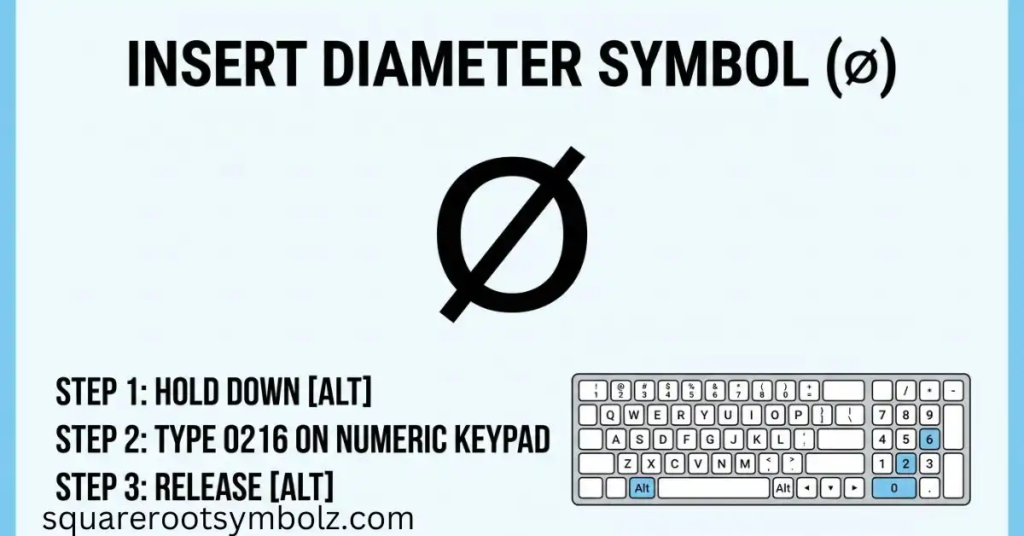
On Windows, the commonly published Excel shortcut is Alt + 0216 for Ø. Select the cell, turn on Num Lock, hold Alt, type 0216 on the numeric keypad, and release Alt. TrumpExcel and ExcelDemy both document this method.
Be careful with the wording “diameter symbol.” Alt + 0216 produces Ø, Unicode U+00D8, not the dedicated diameter sign U+2300. For many Excel worksheets, Ø is accepted as the practical diameter notation, which explains why this shortcut is so widely recommended. If character identity matters, verify which symbol your project requires.
Formula to Get the Diameter Symbol
Excel can generate the commonly used Ø character with the formula =CHAR(216). TrumpExcel documents =CHAR(216) for the capital form and =CHAR(248) for the lowercase form.
Microsoft explains that CHAR(number) returns a character based on the computer’s character set, with Windows Excel using the ANSI character set. This makes CHAR useful for the Ø character, but it is not the same as a general Unicode function.
For modern Unicode-oriented work, Excel also provides UNICHAR(number). Microsoft describes UNICHAR as returning the Unicode character referenced by a numeric value.
For example:
=UNICHAR(8960)
returns:
⌀
That gives you a useful distinction:
| Formula | Result | Character |
| =CHAR(216) | Ø | O with stroke |
| =CHAR(248) | ø | Small o with stroke |
| =UNICHAR(8960) | ⌀ | Diameter Sign |
This is a valuable improvement over older Excel tutorials because it lets you generate the actual Unicode diameter sign rather than automatically treating Ø as identical to ⌀.
Using the Character Map
Windows Character Map provides another dependable way to locate and copy special characters. Search for Character Map from Windows, open the application, locate the required character, click Select, then Copy. Paste the result into your Excel worksheet.
Character Map is particularly useful when the keyboard shortcut fails. It also lets you visually inspect the character before inserting it, which is valuable when you’re deciding between Ø, ø, and ⌀. This method isn’t dependent on Excel alone, so the copied character can also be used in Word, email, presentations, and other Windows applications.
Insert Diameter Symbol Using the Symbol Dialog Box
Excel includes a built-in Symbol dialog for inserting special characters. Select the target cell, open Insert → Symbol, choose the appropriate font and character set, locate the desired character, and click Insert. Microsoft notes that available symbols depend partly on the selected font.
For Ø, competing Excel guides commonly direct users toward the Latin-1 Supplement or ASCII/decimal character area. For ⌀, availability can depend on the font and symbol set, so searching a Unicode-compatible font is safer. Microsoft specifically recommends considering fonts such as Segoe UI Symbol when searching for Unicode symbols.
The Symbol dialog is a good choice when you don’t want to remember an Alt code. It also makes the character visible before insertion, reducing the chance that you accidentally insert a visually similar symbol.
Insert Diameter Symbol Using AutoCorrect in Excel
If you type a diameter symbol dozens of times a day, AutoCorrect can turn a short trigger into the character automatically. ExcelChamps demonstrates creating an AutoCorrect rule so a word such as Dia can be replaced with the diameter character.
Microsoft’s current AutoCorrect documentation confirms that users can create their own replacement entries by associating a typed word or phrase with a symbol. This makes AutoCorrect especially useful for engineers, estimators, manufacturers, and anyone maintaining repeated product-dimension data.
A practical trigger might be something uncommon such as:
;;dia
which replaces the typed trigger with Ø or ⌀, depending on which character you initially configure. Choosing an unusual trigger helps prevent accidental replacements in ordinary text.
Insert Diameter Symbol Using CHAR Function
The CHAR function is useful when your worksheet needs the common Ø character generated programmatically. For example:
=CHAR(216)
returns Ø in standard Windows Excel. Both TrumpExcel and ExcelDemy document this approach.
For Unicode-specific work, UNICHAR is more precise. Microsoft documents UNICHAR(number) as the function that returns the Unicode character associated with a numeric value. Therefore:
=UNICHAR(8960)
can be used when you specifically want ⌀, the Unicode Diameter Sign.
This difference matters when your spreadsheet is part of a larger data workflow. A character that merely looks correct on screen may have a different underlying code point, which can affect searching, filtering, formulas, exports, and data validation.
Insert Diameter Symbol Using Alt Key
The traditional Windows shortcut is Alt + 0216 for Ø. Select the Excel cell, turn on Num Lock, hold the Alt key, enter 0216 using the numeric keypad, and then release Alt. The number row above the letters generally will not perform the same Alt-code operation.
Microsoft explains the general Alt-code behavior: ASCII characters are entered by holding Alt and typing the character code on the numeric keypad, with Num Lock enabled when required.
If you have a laptop without a dedicated numeric keypad, don’t assume the shortcut is broken. Use Insert → Symbol, Character Map, copy-paste, or a Unicode-capable method instead. For a frequently used symbol, AutoCorrect may ultimately be faster than any manual shortcut.
Quick Excel Diameter Symbol Reference
| Method | Windows | Mac | Best for |
| Copy & paste | ✓ | ✓ | One-time use |
| Alt + 0216 | ✓ | — | Fast Ø insertion |
| CHAR(216) | ✓ | ✓* | Formula-generated Ø |
| UNICHAR(8960) | ✓ | ✓ | Actual ⌀ Unicode sign |
| Insert → Symbol | ✓ | ✓ | Visual selection |
| Character Map | ✓ | — | Windows fallback |
| AutoCorrect | ✓ | Depends on version | Frequent use |
*Behavior can depend on Excel version and platform.
Microsoft’s current Excel documentation lists CHAR and UNICHAR separately, which is important: CHAR is character-set based, whereas UNICHAR works with Unicode code points.
Conclusion
The best excel diameter symbol method depends on whether you need the commonly used Ø or the technically distinct ⌀. For quick Windows entry, Alt + 0216 is convenient for Ø; for formula-based worksheets, CHAR(216) works for Ø, while UNICHAR(8960) targets the Unicode diameter sign ⌀. Excel’s Insert → Symbol option is the easiest visual method.
If you’re building engineering, manufacturing, or measurement spreadsheets, I recommend saving your preferred method as an AutoCorrect shortcut. That turns a symbol you normally hunt for into a two- or three-character trigger. More importantly, knowing the difference between Ø and ⌀ prevents a small-looking character mistake from becoming a data or documentation problem.
FAQ Section
What is the Excel diameter symbol shortcut?
For the commonly used Ø character, press Alt + 0216 on a Windows numeric keypad with Num Lock enabled. For the actual Unicode diameter sign ⌀, use a Unicode-capable insertion method instead.
How do I type Ø in Excel?
Select a cell and press Alt + 0216 using the numeric keypad. You can also use =CHAR(216) or insert the character through Insert → Symbol.
How do I type ⌀ in Excel?
Use Insert → Symbol if the character is available in your selected font, copy and paste ⌀, or use =UNICHAR(8960) to generate the Unicode Diameter Sign.
Why does Alt + 0216 produce Ø instead of ⌀?
Because 0216 corresponds to Ø (U+00D8). The dedicated Unicode Diameter Sign is ⌀ (U+2300). The two characters look similar but are technically different.
Does Excel have a diameter symbol key?
No dedicated diameter key exists on a standard keyboard. Excel provides alternative methods such as Symbol insertion, Alt codes, formulas, Character Map, and AutoCorrect.
Can I use CHAR for the diameter symbol?
Yes. =CHAR(216) produces Ø in standard Windows Excel. For the Unicode diameter sign, UNICHAR(8960) is the more precise approach.
What if Alt + 0216 doesn’t work?
Make sure Num Lock is enabled and that you’re using the numeric keypad rather than the number row above the letters. If your keyboard has no numeric keypad, use Symbol, Character Map, or copy-paste.
Can I automatically insert the diameter symbol in Excel?
Yes. Excel’s AutoCorrect feature allows you to create a custom text replacement that automatically inserts a symbol when you type your chosen trigger.
Is Ø the same as the diameter sign ⌀?
No. Ø and ⌀ are separate Unicode characters. Ø is O with stroke, while ⌀ is the dedicated Diameter Sign.

I’m the creator of SquareRootSymbolz.com, where I publish easy-to-understand guides on symbols, Unicode characters, Alt codes, keyboard shortcuts, and copy-and-paste text symbols. My goal is to provide accurate, well-researched, and user-friendly content that helps readers quickly find the information they need.