The √ Square Root Symbol is one of the most commonly used mathematical symbols in algebra, geometry, engineering, science, and computer programming. Whether you need to copy and paste the symbol, type it using a keyboard shortcut, or insert it into Microsoft Word, Google Docs, HTML, or LaTeX, this guide covers everything in one place.
If you’re looking for a quick answer, simply copy the symbol below.
Square Root Symbol Copy and Paste
√
You can copy the square root symbol above and paste it into documents, spreadsheets, emails, social media posts, calculators, or code editors.
What Is the Square Root Symbol (√)?
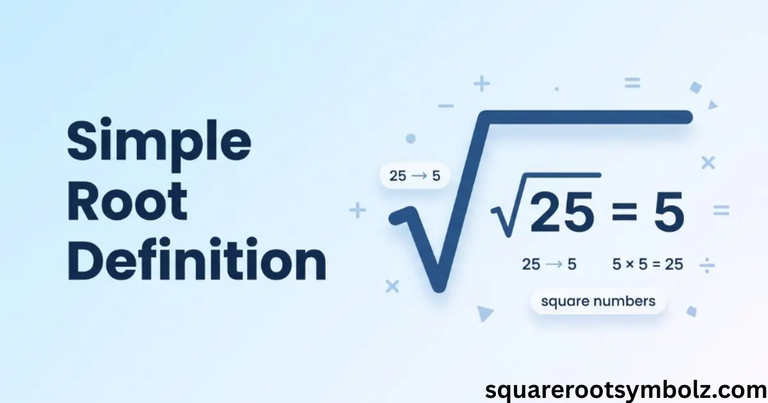
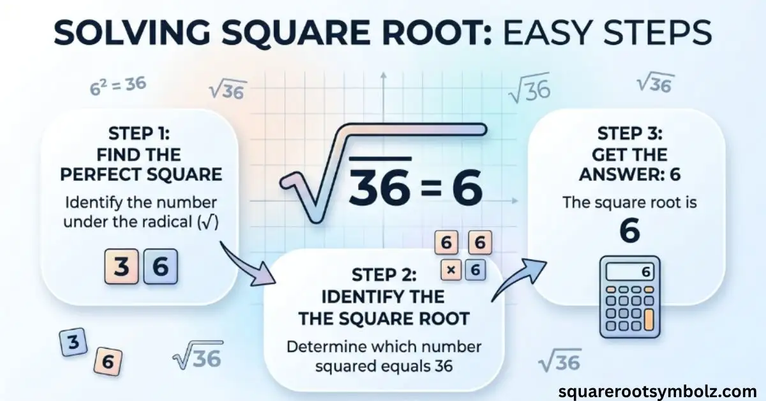
The square root symbol (√), also known as the radical symbol, represents the mathematical operation of finding a number that, when multiplied by itself, equals the original number.
For example:
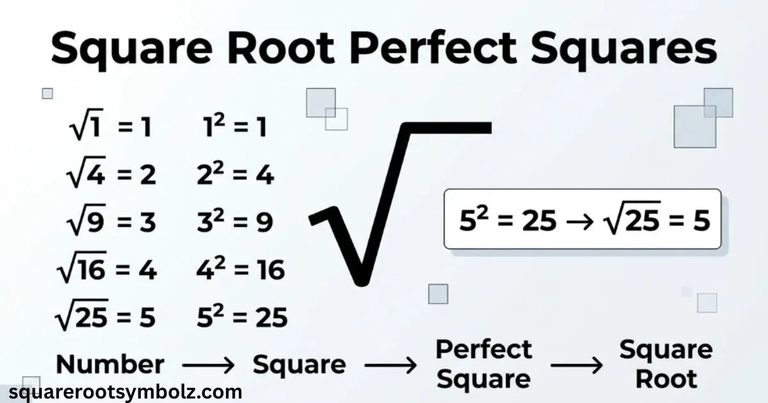
- √4 = 2
- √9 = 3
- √16 = 4
- √25 = 5
The symbol is called the radical symbol because it is used in radical expressions, which represent roots such as square roots, cube roots, and higher-order roots.
Common Uses of the Square Root Symbol
The √ symbol is widely used in:
- Mathematics
- Algebra
- Geometry
- Engineering
- Physics
- Statistics
- Computer Science
- Financial calculations
- Scientific formulas
Square Root Symbol Copy and Paste
Copy the symbol you need from the table below.
| Symbol | Name | Copy |
| √ | Square Root | √ |
| ∛ | Cube Root | ∛ |
| ∜ | Fourth Root | ∜ |
Character Information
| Property | Value |
| Symbol | √ |
| Unicode | U+221A |
| Unicode Number | 8730 |
| HTML Code | √ |
| HTML Entity | √ |
| CSS Code | \221A |
| Hex Code | √ |
| Decimal Code | √ |
How to Type the Square Root Symbol on Any Device
Different devices use different methods for entering the √ symbol. Here are the easiest options.
Windows Keyboard Shortcut
Windows doesn’t have a universal keyboard shortcut that works everywhere, but you can use these methods:
- Hold Alt and type 251 on the numeric keypad (works in many Windows applications).
- Use the Character Map.
- Use the Symbol menu in Microsoft Office.
Mac Keyboard Shortcut
On macOS:
- Press Control + Command + Space.
- Search for Square Root or Radical.
- Click √ to insert it.
Chromebook
- Open the Emoji & Symbols picker if available.
- Search for square root.
- Or copy and paste the symbol.
Android
The Android keyboard usually doesn’t include the symbol directly.
Options include:
- Long-press mathematical symbols if your keyboard supports it.
- Use Google search.
- Copy and paste the symbol.
iPhone and iPad
On iOS devices:
- Open the Emoji & Symbols menu if your keyboard supports it.
- Use a text replacement shortcut.
- Copy and paste √ whenever needed.
Linux
Linux users can insert the symbol using:
- Unicode input
- Character Map
- Compose key (depending on the desktop environment)
Square Root Symbol Alt Codes and Character Codes
Understanding different character codes makes it easier to use the symbol in documents and websites.
Alt Code
The commonly used Windows Alt code is:
Alt + 251
(Some applications may support additional input methods.)
Unicode
| Character | Unicode |
| √ | U+221A |
Unicode ensures the √ symbol displays consistently across modern operating systems.
ASCII
The square root symbol is not part of the original ASCII character set. It belongs to the Unicode standard.
HTML Entity
√
or
√
CSS Escape Code
content: “\221A”;
JavaScript
let symbol = “\u221A”;
LaTeX
\sqrt{x}
Example:
[
\sqrt{25}=5
]
LaTeX automatically formats the radical symbol correctly in mathematical documents.
How to Insert the Square Root Symbol in Popular Apps
Adding the √ Square Root Symbol is simple once you know where to find it. Here are the quickest methods for the most popular applications.
Microsoft Word
You can insert the √ symbol in Microsoft Word using any of these methods:
- Go to Insert → Symbol → More Symbols.
- Search for the Square Root (√) symbol and click Insert.
- Use the Equation tool and type \sqrt followed by the Spacebar.
- Copy and paste the symbol directly.
Microsoft Excel
In Excel, you can:
- Copy and paste √ into a cell.
- Go to Insert → Symbol and select the symbol.
- Use the UNICHAR function:
=UNICHAR(8730)
PowerPoint
To insert the square root symbol in PowerPoint:
- Select Insert → Symbol.
- Choose the √ symbol.
- Or simply copy and paste it into your slide.
Google Docs
There are several ways to insert √ in Google Docs:
- Go to Insert → Special Characters.
- Search for Square Root or Radical.
- Draw the symbol in the search box.
- Copy and paste √.
Google Sheets
Google Sheets supports the UNICHAR function:
=UNICHAR(8730)
You can also copy and paste the symbol into any cell.
Outlook
In Microsoft Outlook:
- Use Insert → Symbol.
- Copy and paste √.
- Use the Character Map in Windows if needed.
Square Root Symbol Examples and Mathematical Uses
The √ symbol appears in many areas of mathematics and science. Understanding its practical applications makes it easier to recognize and use correctly.
Simple Examples
- √1 = 1
- √4 = 2
- √9 = 3
- √16 = 4
- √36 = 6
- √64 = 8
- √100 = 10
Square Root Equations
Example:
√x = 8
Square both sides:
x = 64
Radical Expressions
A radical expression contains a root symbol.
Examples:
- √a
- √(x + 5)
- √49
- 3√2
Geometry
Square roots are commonly used to calculate:
- Diagonals
- Distance between two points
- Pythagorean theorem
- Area and perimeter formulas
Algebra
In algebra, square roots help solve:
- Quadratic equations
- Simplifying radicals
- Factoring expressions
- Polynomial equations
Engineering
Engineers use square roots in:
- Structural calculations
- Electrical formulas
- Signal processing
- Mechanical design
Science
The square root symbol appears frequently in:
- Physics
- Chemistry
- Statistics
- Data analysis
- Computer science
- Scientific research
Related Math Symbols You May Need
If you work with mathematical expressions, these symbols are also useful.
| Symbol | Name |
| ∛ | Cube Root |
| ∜ | Fourth Root |
| ± | Plus Minus |
| ∞ | Infinity |
| π | Pi |
| Σ | Sigma |
| ° | Degree |
| ≈ | Approximately Equal |
| ≠ | Not Equal |
| × | Multiplication |
| ÷ | Division |
Conclusion
The √ Square Root Symbol is an essential mathematical character used in education, science, engineering, programming, and everyday calculations. Whether you need to copy and paste the symbol, use its Unicode, HTML entity, CSS escape code, or insert it in Microsoft Word, Google Docs, or LaTeX, this guide provides everything you need in one place.
For the best experience, bookmark this page as your quick reference whenever you need the √ symbol, related mathematical symbols, or platform-specific keyboard shortcuts.
FAQs
What is the Alt code for √?
The commonly used Windows Alt code is Alt + 251 on the numeric keypad, although support varies by application.
How do I type √ on Windows?
You can use Alt + 251, insert it from the Symbol menu, or simply copy and paste √.
Is the radical symbol the same as the square root symbol?
Yes. The square root symbol is commonly called the radical symbol because it represents radical expressions.
Can I copy and paste the square root symbol?
Yes. Simply copy √ from this page and paste it anywhere you need it.
What is the Unicode for √?
The Unicode value for the square root symbol is U+221A.
How do I insert √ in Google Docs?
Open Insert → Special Characters, search for Square Root, and select the symbol.
How do I type √ on a Mac?
Press Control + Command + Space, search for Square Root, and insert the symbol from the Character Viewer.
Common Problems and How to Fix Them
Alt Code Not Working
- Make sure Num Lock is enabled.
- Use the numeric keypad instead of the top-row numbers.
- Some applications do not support Alt codes.
Symbol Not Displaying Correctly
If the √ symbol appears as a box or question mark:
- Switch to a Unicode-compatible font such as Arial, Calibri, Segoe UI, or Times New Roman.
- Save your document using UTF-8 encoding when working with web content.
Font Compatibility
Older fonts may not include the square root character. Updating to a modern font usually resolves the issue.
Mobile Keyboard Limitations
Most mobile keyboards don’t display the symbol by default. The easiest solution is to copy and paste √ or create a text replacement shortcut.
Encoding Issues
When developing websites, use UTF-8 encoding and the correct Unicode or HTML entity to ensure the symbol displays consistently across browsers.
Quick Reference Table
| Symbol | Name | Unicode | Alt Code | HTML | CSS | Copy |
| √ | Square Root | U+221A | Alt + 251 | √ or √ | \221A | √ |
Tip: If your website includes a “Copy” button, place it beside the symbol so visitors can copy it with a single click. This improves user experience and engagement.

I’m the creator of SquareRootSymbolz.com, where I publish easy-to-understand guides on symbols, Unicode characters, Alt codes, keyboard shortcuts, and copy-and-paste text symbols. My goal is to provide accurate, well-researched, and user-friendly content that helps readers quickly find the information they need.