The box symbol can mean several characters, including ☐, ☑, ☒, □, and ■. If you need a checkbox, square shape, ballot box, or box-drawing character, the quickest solution is to copy the exact character you need and paste it where you want. Unicode, HTML codes, keyboard shortcuts, Microsoft Word, Excel, Google Docs, and mobile devices all provide different ways to use these symbols.
The small difference between these characters matters. A ballot box such as ☐ is not the same Unicode character as a plain white square □, while ■ is a filled square. After working with mathematical and text symbols, I have found that this distinction saves readers from choosing a symbol that looks right but behaves differently. This guide brings those common box symbols, Unicode values, copy-and-paste methods, keyboard tools, and device instructions together in one place.
Copy And Paste Box Symbol With Dec Code, Hex Code & Unicode
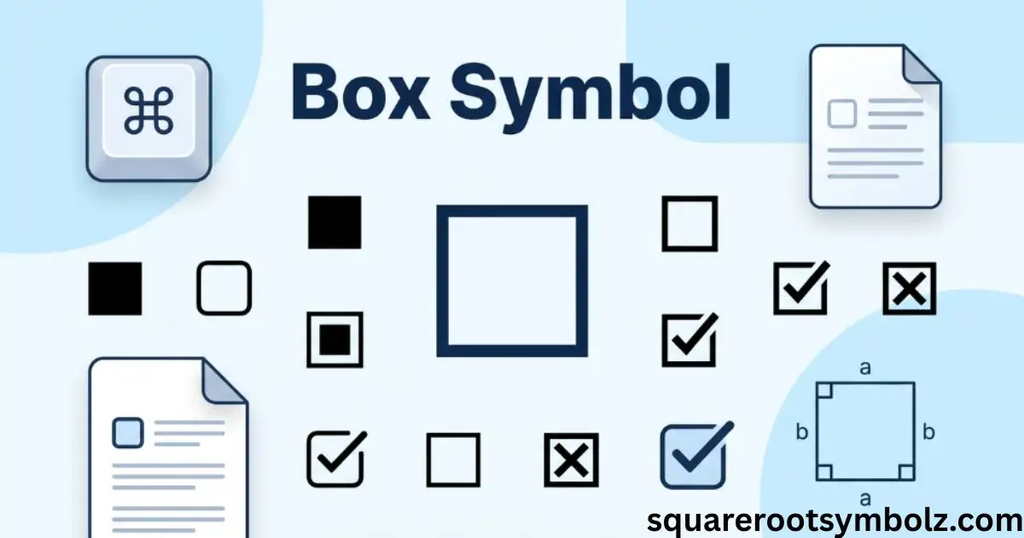
Here are several commonly requested box symbols you can copy immediately:
| Symbol | Common name | Unicode | Decimal |
| ☐ | Ballot Box | U+2610 | 9744 |
| ☑ | Ballot Box With Check | U+2611 | 9745 |
| ☒ | Ballot Box With X | U+2612 | 9746 |
| □ | White Square | U+25A1 | 9633 |
| ■ | Black Square | U+25A0 | 9632 |
| ▢ | White Square With Rounded Corners | U+25A2 | 9634 |
| ▣ | White Square Containing Black Small Square | U+25A3 | 9635 |
Unicode identifies □ as WHITE SQUARE and ■ as BLACK SQUARE in the Geometric Shapes block. It identifies ☐ as BALLOT BOX in the Miscellaneous Symbols block. These distinctions are useful when choosing a character for a document, checklist, website, or design.
For quick copying, use ☐ when you want an empty checkbox, ☑ for a checked box, ☒ for an X-marked box, □ for a plain outlined square, and ■ for a filled square. These are text characters rather than images, so their appearance can change slightly with the font or platform.
| Use | Symbol |
| Empty checkbox | ☐ |
| Checked checkbox | ☑ |
| X-marked checkbox | ☒ |
| White square | □ |
| Black square | ■ |
| Rounded white square | ▢ |
| Filled-center square | ▣ |
The most important point is simple: choose the character according to its purpose rather than choosing only by appearance. A printable checklist might need ☐, while a decorative text design may need □ or ■.
A) Box symbols in Microsoft Word (Windows + Mac)
Microsoft Word gives you several ways to insert a box symbol. On Windows, open Insert → Symbol → More Symbols, choose a suitable font, select the character, and click Insert. On Mac, the Character Viewer provides another convenient route for finding Unicode characters and inserting them into a document.
If you already have the symbol, copy and paste it directly. For Word on Windows, Unicode hexadecimal input can also be useful: type the relevant code and use Alt + X where Word supports that conversion. For example, the Unicode value for ☐ is U+2610, while □ is U+25A1.
Tips to find the right “box symbol” faster
Start by deciding whether you need a checkbox, square shape, or box-drawing character. Fonts can affect what you see, so switching the font in Word may reveal characters that were unavailable in another font. Segoe UI Symbol is commonly useful for symbol characters on Windows.
A static symbol such as ☐ should not be confused with an interactive Word checkbox. If the document needs a box that users can actually click, Word’s checkbox content control is the appropriate feature. A text character only displays a box; it does not automatically become an interactive form control.
B) Box symbols in Excel
Excel can display box symbols as ordinary text characters. You can copy ☐, ☑, ☒, □, or ■ from a symbol reference and paste it into a cell. Another option is Insert → Symbol, depending on your Excel version and operating system.
Excel also supports Unicode through the UNICHAR function. For example, =UNICHAR(9744) returns ☐, while =UNICHAR(9633) returns □. This is especially useful when a worksheet needs repeated checklist symbols or automatically generated visual markers.
| Excel formula | Result |
| =UNICHAR(9744) | ☐ |
| =UNICHAR(9745) | ☑ |
| =UNICHAR(9746) | ☒ |
| =UNICHAR(9633) | □ |
| =UNICHAR(9632) | ■ |
Remember that a Unicode character is still text. Its visual appearance can depend on the font used in the spreadsheet. If a particular character does not render as expected, try a font with suitable Unicode coverage rather than assuming the character code is incorrect.
C) Box symbols in PowerPoint
PowerPoint handles box symbols much like other Microsoft Office applications. You can copy a character such as ☐ or □ and paste it into a text box, title, caption, or presentation note. You can also use Insert → Symbol to locate characters from available fonts.
The choice depends on your design. An empty ballot box works well for a checklist slide, while a black square can act as a visual marker. A box-drawing character may be useful for text-based diagrams, although PowerPoint shapes are usually more flexible when you need editable borders or graphic boxes.
For a consistent presentation, keep related symbols in the same font and use a suitable size. Emoji-style characters can have different visual treatments across platforms, while ordinary Unicode text characters generally follow the typography of the surrounding text.
D) Box symbols in Google Docs
Google Docs includes a built-in Insert → Special characters feature. Open it, search for terms such as “checkbox,” “square,” or “box drawing,” and select the character you need. This is useful when you know the general type of symbol but do not know its Unicode number.
Copy and paste is still the fastest option when the exact character is already known. For example, you can copy ☐ for an empty checkbox or □ for a plain white square and paste it directly into a document.
Google Docs is particularly convenient for collaborative documents because the symbol remains part of the text rather than being inserted as an image. If the character looks different from another device, check the selected font and the platform’s available glyphs.
E) Box symbols in Google Sheets
Google Sheets can display box symbols directly in cells. The simplest method is to copy a symbol and paste it into the desired cell. You can also use Unicode formulas when you need symbols to be generated from spreadsheet data.
For example, =UNICHAR(9744) produces ☐, while =UNICHAR(9633) produces □. This can be useful for checklists, dashboards, status columns, templates, and simple visual indicators.
| Purpose | Character |
| Unchecked item | ☐ |
| Checked item | ☑ |
| Rejected or X-marked item | ☒ |
| Outline square | □ |
| Filled square | ■ |
If a formula produces an unexpected square or missing character, check the font and character support. Unicode defines the code point, but the font is responsible for providing the visual glyph that represents it.
F) Box symbols on iPhone + Android
Most phone keyboards do not place every Unicode box character on a dedicated key. The easiest solution is usually to copy the required symbol and paste it into Messages, Notes, Google Docs, a browser field, or another application.
For an empty checkbox, copy ☐. For a checked box, use ☑. For a plain square, use □. If you use one frequently, your phone’s text-replacement feature can make repeated insertion faster.
The exact appearance can vary between operating systems, apps, and fonts. This is especially noticeable with emoji-style symbols. A plain Unicode character and an emoji may look similar at first glance but can have different rendering behavior.
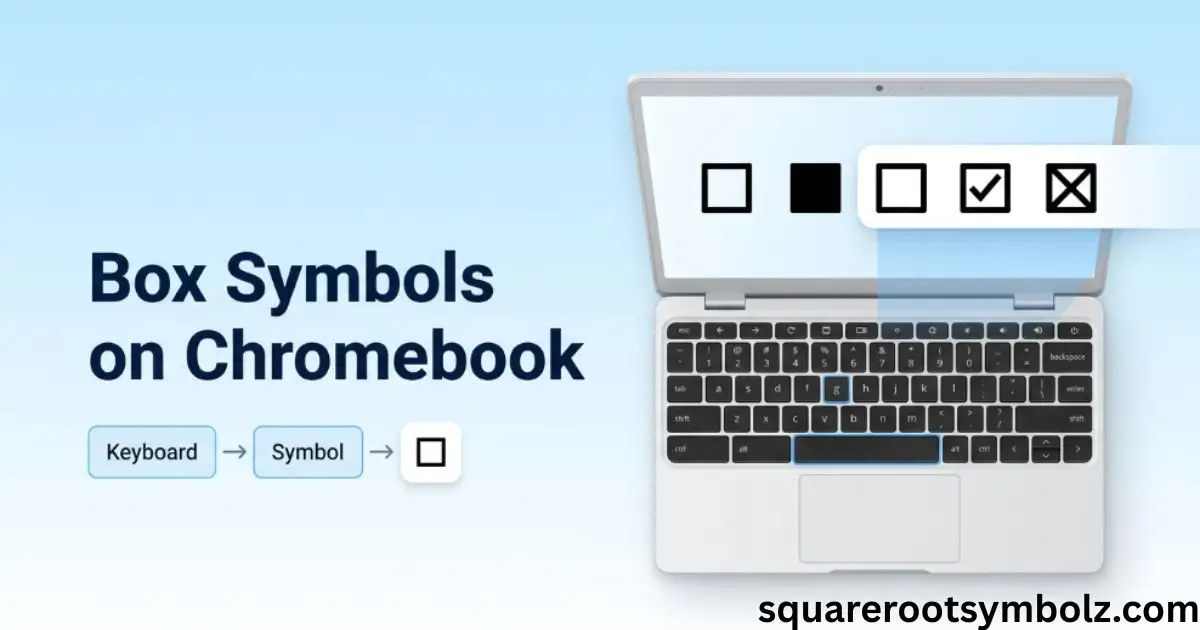
G) Box symbols on Chromebook (short)
On a Chromebook, copy and paste is usually the quickest method for using a box symbol. If you are working in Google Docs, choose Insert → Special characters and search for “checkbox,” “square,” or “box drawing.” Select the character to place it in the document.
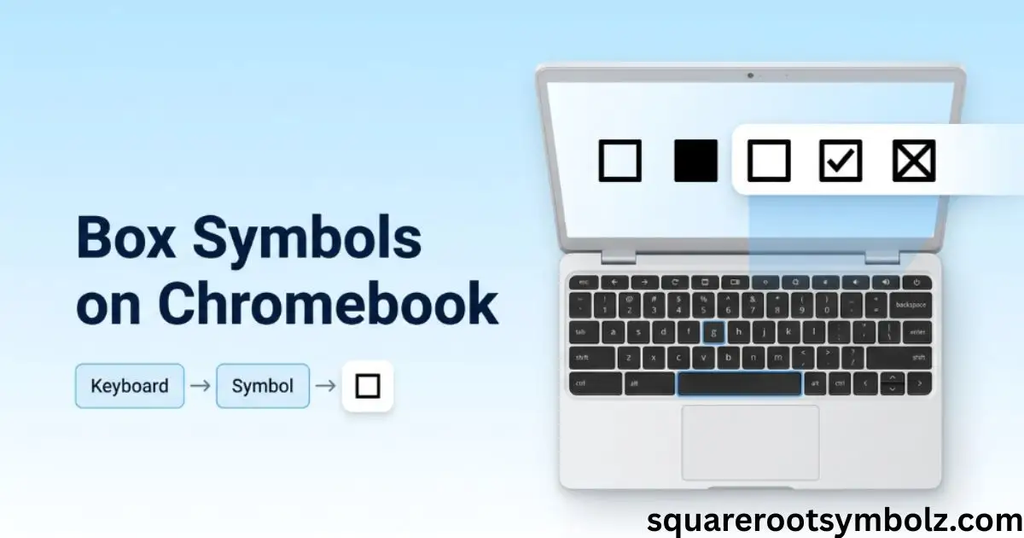
If you need the same symbol repeatedly, keeping a small reference list can save time. For example, you might store ☐, ☑, ☒, □, and ■ in a note and copy the required character whenever you need it.
“The symbol shows as a box □”
Sometimes a user says that a character “shows as a box,” but that visible rectangle may not be the box symbol they intended to insert. It can be a missing-glyph placeholder created when the current font cannot display the requested character.
If the character itself is correct but the font lacks its glyph, changing to a font with broader character coverage can solve the display problem. Unicode defines the character, while the font determines whether your device has a visual representation available.
“Boxes look different on another device”
Different devices can render the same Unicode character with slightly different glyph designs. Font selection, operating system, application, and emoji presentation can all influence its appearance. This does not necessarily mean that the underlying Unicode character has changed.
For consistent text documents, use a common Unicode character and a widely supported font. If exact visual appearance matters, especially in branding or graphic design, an image or vector shape may provide more predictable control than a text character.
Conclusion
The box symbol is not one single Unicode character. The most useful choices depend on what you are trying to represent: ☐ is BALLOT BOX, ☑ is BALLOT BOX WITH CHECK, ☒ is BALLOT BOX WITH X, □ is WHITE SQUARE, and ■ is BLACK SQUARE. Unicode treats these as distinct characters.
For everyday use, copy and paste is usually the fastest option. Word and other Office applications provide symbol insertion tools, Google Docs provides Special characters, spreadsheets can use Unicode functions, and mobile devices can rely on copy/paste or text replacement. The key is to select the character that matches the job rather than assuming every square-looking character means the same thing.
FAQ Section
How do I type a checkbox symbol?
The quickest method is to copy ☐ or ☑ and paste it where needed. In Microsoft Word, you can also use Insert → Symbol → More Symbols. Windows users can additionally use Character Map.
How do I insert a box symbol in Word?
In Word, place your cursor where you want the character, choose Insert → Symbol → More Symbols, select the desired box character, and click Insert. For an interactive checkbox, use Word’s checkbox control rather than a static Unicode character.
How do I type an empty box ☐?
You can simply copy ☐ and paste it. Its Unicode code point is U+2610, and its decimal value is 9744.
Why does my symbol show as a square box?
The character may be unsupported by the font being used. A missing glyph can appear as an empty rectangle or another placeholder. Try changing the font or using a more widely supported character.
How do I make a clickable checkbox in Word?
A Unicode character such as ☐ is static. For an interactive checkbox, use Word’s Developer tools and insert a checkbox content control.
What is the difference between □ and ☐?
□ is Unicode WHITE SQUARE, U+25A1, while ☐ is BALLOT BOX, U+2610. They may look similar, but they are different characters with different Unicode identities.
What is the black box symbol?
The standard Unicode BLACK SQUARE is ■, code point U+25A0 and decimal value 9632.
Can I use box symbols in HTML?
Yes. Unicode characters can be placed directly in UTF-8 HTML, or represented with numeric character references. For example, the HTML hexadecimal reference for ☐ is ☐, while □ is □.
Are box symbols images?
Common characters such as ☐, □, and ■ are Unicode text characters, not image files. Their exact visual appearance can vary with the font and rendering environment.

I’m the creator of SquareRootSymbolz.com, where I publish easy-to-understand guides on symbols, Unicode characters, Alt codes, keyboard shortcuts, and copy-and-paste text symbols. My goal is to provide accurate, well-researched, and user-friendly content that helps readers quickly find the information they need.