An EmDash copy paste (—) is a long punctuation mark used to create emphasis, indicate interruptions, replace parentheses or commas, and improve sentence flow. Whether you’re writing an essay, blog post, email, or book, knowing how to type and use the em dash correctly can make your writing more polished and professional.
In this guide, you’ll find an instant copy-and-paste em dash, keyboard shortcuts for every device, Alt codes, Unicode, HTML entity, practical examples, and the differences between an em dash, en dash, and hyphen.
Em Dash (—) Copy and Paste
Need to use an em dash quickly? Copy it below.
Copy the Em Dash
—
Simply select the symbol above and press Ctrl + C (Windows/Linux) or ⌘ + C (Mac), then paste it wherever you need.
Em Dash Character Codes
| Property | Value |
| Symbol | — |
| Name | Em Dash |
| Unicode | U+2014 |
| HTML Code | — |
| HTML Entity | — |
| CSS Escape | \2014 |
| Decimal | 8212 |
| Hex | 2014 |
| Windows | Alt + 0151 |
| Mac | Shift + Option + Hyphen (-) |
| Linux | Ctrl + Shift + U → 2014 |
Quick Tip: If your keyboard doesn’t have a direct shortcut, simply copy the symbol from this page whenever you need it.
What Is an Em Dash?
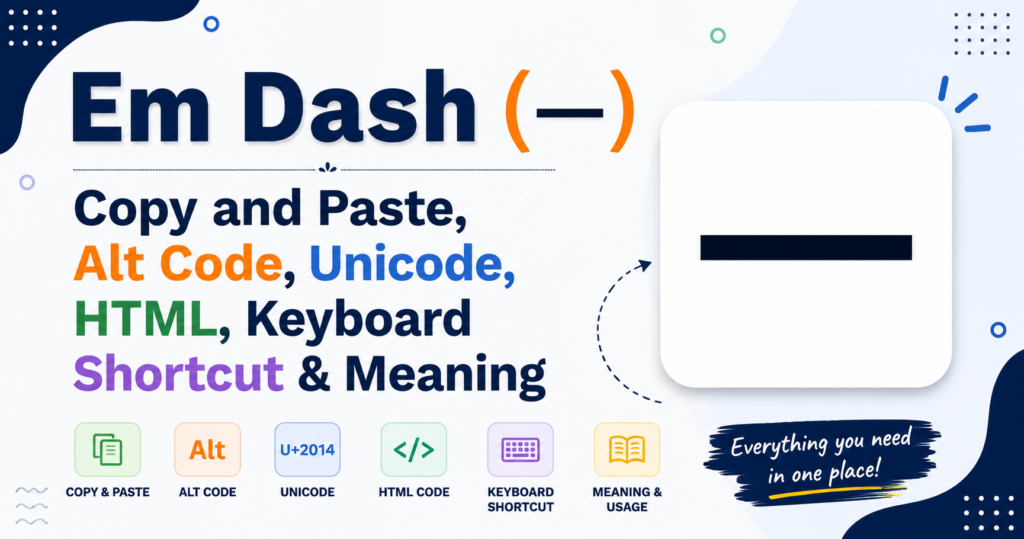
An EmDash copy paste (—) is a punctuation mark approximately the width of the uppercase letter “M,” which is where its name comes from. It is longer than flat symbol the en dash (–) and the hyphen (-).
Writers use an em dash to:
- Add emphasis
- Show an interruption
- Replace commas
- Replace parentheses
- Introduce extra information
- Create dramatic pauses
Unlike a hyphen, an em dash does not connect two words. Instead, it separates parts of a sentence for clarity or emphasis.
Quick Examples
- She finally arrived but much later than expected.
- My favorite dessert cheesecake is on the menu.
- Wait I forgot my keys!
You’ll commonly see em dashes in:
- Books
- News articles
- Blogs
- Magazines
- Academic writing
- Creative writing
- Professional emails
Em Dash Meaning and Common Uses
The emdash copy paste is one of the most versatile punctuation marks in English writing.
Create Emphasis
Instead of commas, an em dash draws stronger attention.
Example
The winner against all odds crossed the finish line first.
Show Interruptions
Perfect for interrupted dialogue.
Example
“If you don’t stop—”
The lights suddenly went out.
Replace Parentheses
The sentence flows more naturally.
Example
The conference originally planned for June has been postponed.
Introduce a List
An emdash copy paste can introduce information dramatically.
Example
She packed everything she needed—passport, tickets, charger, and wallet.
Academic Writing
Many style guides allow em dashes when used carefully to improve readability without overusing commas.
Blogging
Bloggers often use em dashes to make conversational sentences easier to read.
Journalism
News writers use em dashes for concise explanations and quotations.
Creative Writing
Novelists frequently use em dashes in dialogue and narration to create rhythm and realistic speech.
Em Dash vs En Dash vs Hyphen
Although they look similar, these punctuation marks have different purposes.
| Symbol | Name | Length | Primary Use |
| — | Em Dash | Longest | Interruptions, emphasis, replacing commas or parentheses |
| – | En Dash | Medium | Number ranges, relationships, connections |
| – | Hyphen | Shortest | Join compound words |
Em Dash (—)
Used for interruptions and emphasis.
Example:
The answer—believe it or not—is correct.
En Dash (–)
Used for ranges and connections.
Examples:
2019–2025
New York–London flight
Hyphen (-)
Used to join words.
Examples:
well-known
mother-in-law
high-quality
Remember: Never replace an em dash with a hyphen in formal writing unless your software doesn’t support the character.
How to Type an Em Dash on Any Device
Windows
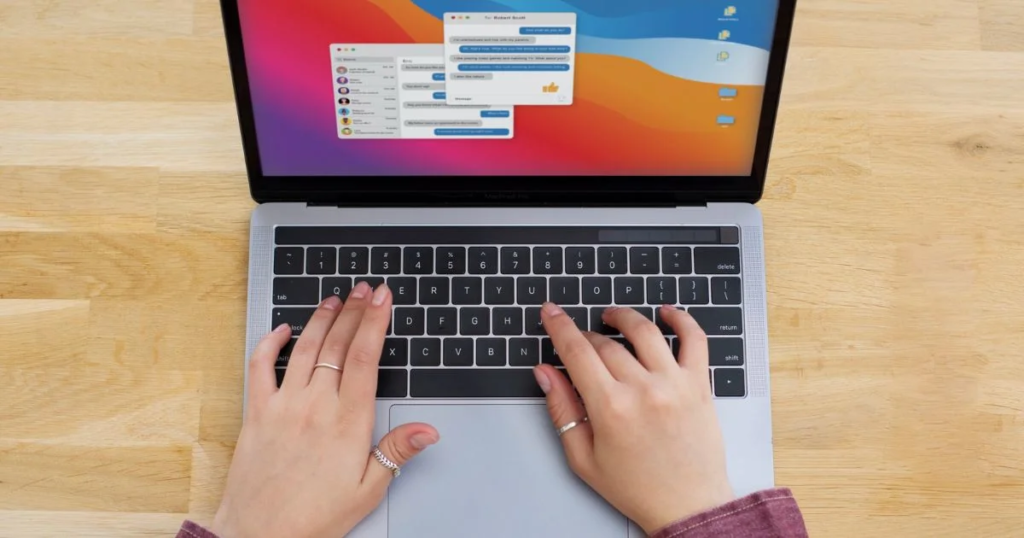
Method 1: Alt Code
Hold Alt and type 0151 on the numeric keypad.
Produces:
—
Method 2: Microsoft Word
Type two hyphens between words and enable AutoFormat, or use Ctrl + Alt + Minus on some keyboards.
Mac
Press:
Shift + Option + Hyphen (-)
The em dash appears instantly.
Chromebook
There isn’t a universal built-in shortcut. Use:
- Google Docs → Insert → Special Characters
- Unicode input (where supported)
- Copy and paste from this page
Linux
Press:
Ctrl + Shift + U
Type:
2014
Press Enter or Space.
Produces:
—
Android
Long-press the hyphen (-) key on many keyboard apps (such as Gboard) to reveal the em dash, or use the symbols keyboard if available.
iPhone & iPad
Touch and hold the hyphen (-) key.
A menu appears with:
- –
- —
Slide your finger to the em dash and release.
Em Dash Alt Code, Unicode, HTML & Character Codes
If you’re using the em dash in web development, programming, design, or documents, these character codes make it easy to insert the symbol correctly.
| Character Property | Value |
| Symbol | — |
| Official Name | Em Dash |
| Unicode | U+2014 |
| Unicode Decimal | 8212 |
| HTML Entity | — |
| HTML Number | — |
| HTML Hex | — |
| CSS Escape | \2014 |
| JavaScript | “\u2014” |
| URL Encoding | %E2%80%94 |
| UTF-8 Bytes | E2 80 94 |
| ASCII | Not Available (ASCII supports only 128 characters) |
HTML Example
<p>This sentence uses an — correctly.</p>
Output
This sentence uses an — correctly.
CSS Example
content: “\2014”;
JavaScript Example
const emDash = “\u2014”;
console.log(emDash);
These codes are especially useful when building websites, writing HTML emails, creating web applications, or working with text-processing scripts.
How to Insert an Em Dash in Popular Apps

Different applications provide different ways to insert an em dash. Here are the quickest methods.
Microsoft Word
Microsoft Word automatically creates an em dash in several ways.
Method 1
- Type two hyphens (–) between words.
- If AutoFormat is enabled, Word converts them into an em dash.
Method 2
- Go to Insert → Symbol → More Symbols.
- Select Em Dash (—).
Method 3
Use the Alt + 0151 shortcut on Windows.
Google Docs
Google Docs doesn’t have a default keyboard shortcut on Windows, but you can easily insert an em dash.
Option 1
Go to:
Insert → Special Characters
Search for Em Dash and click the symbol.
Option 2
Copy and paste:
—
Microsoft Excel
Excel supports the same Windows Alt Code.
- Hold Alt
- Type 0151
You can also copy and paste the symbol into any cell.
Microsoft PowerPoint
PowerPoint supports several methods:
- Alt + 0151
- Insert → Symbol
- Copy and Paste
This is useful when designing presentations with professional typography.
Microsoft Outlook
When writing emails:
- Use Alt + 0151
- Copy and paste the symbol
- Outlook may also autocorrect double hyphens into an em dash, depending on your settings.
Adobe InDesign
Professional designers frequently use em dashes.
Navigate to:
Type → Insert Special Character → Hyphens and Dashes → Em Dash
This ensures consistent typography in print layouts.
Canva
Canva doesn’t provide a dedicated em dash button.
Simply copy:
—
Then paste it into any text box.
Em Dash Examples in Sentences
Learning through examples is the easiest way to understand when to use an em dash.
Dialogue
“I told you not to—”
The phone rang before she could finish.
Interruptions
We were planning the trip—but everything changed overnight.
Parenthetical Information
My laptop—the one I bought last year—is already outdated.
Emphasis
There was only one solution—leave immediately.
Lists
Bring the essentials—passport, charger, medication, and wallet.
Titles
The Future of AI—A Practical Guide
Creative Writing
The forest was silent—too silent—as darkness slowly surrounded them.
Business Writing
The report—submitted ahead of schedule—received positive feedback.
Academic Writing
Climate change—one of today’s greatest challenges—requires global cooperation.
Email Example
Thank you for your application—we’ll contact you within five business days.
FAQs
What is the difference between an em dash and a hyphen?
An em dash (—) separates ideas or adds emphasis, while a hyphen (-) joins words such as well-known or high-quality.
Can I use spaces around an em dash?
It depends on the style guide. Most American English styles do not use spaces, while some publishers and British styles may include them.
How do I type an em dash on Windows?
Hold the Alt key and type 0151 on the numeric keypad, or insert it through Microsoft Word.
Is an em dash the same as a long dash?
Yes. The em dash is commonly referred to as the long dash because it is longer than both the en dash and the hyphen.
When should I use an em dash instead of commas?
Use an em dash when you want stronger emphasis or a noticeable pause that commas cannot provide.
Does an em dash have an Alt code?
Yes. The Windows Alt code for the em dash is Alt + 0151.
What is the Unicode for an em dash?
The Unicode value is U+2014.
What is the HTML entity for an em dash?
Use — or — in HTML.
Can I use an em dash in Google Docs?
Yes. You can insert it through Insert → Special Characters or simply copy and paste the symbol.
Is an em dash supported on mobile devices?
Yes. Most Android and iPhone keyboards allow you to access the em dash by long-pressing the hyphen key or through the symbols keyboard.
Related Dashes and Punctuation Symbols
If you’re working with punctuation symbols, you may also find these useful:
| Symbol | Name | Common Use |
| – | En Dash | Number ranges and relationships |
| – | Hyphen | Compound words |
| − | Minus Sign | Mathematics |
| ― | Horizontal Bar | Quotation formatting and typography |
| ‒ | Figure Dash | Number alignment |
| • | Bullet | Lists |
| … | Ellipsis | Omitted words or pauses |
| ” “ | Quotation Marks | Direct speech and quotations |
Exploring these related symbols will help you choose the correct punctuation mark for every writing situation.
Conclusion
The Em Dash (—) is one of the most flexible punctuation marks in modern writing. It improves readability, adds emphasis, replaces commas or parentheses, and creates smoother, more engaging sentences. Whether you’re writing a blog post, academic paper, business email, or creative story, understanding how to use an em dash correctly will make your writing look more polished and professional.
With the copy-and-paste symbol, Alt code, Unicode, HTML entity, keyboard shortcuts, and practical examples provided in this guide, you now have everything you need to insert and use the em dash confidently across Windows, Mac, Linux, mobile devices, and popular applications.
Pro Tip: Bookmark this page so you can quickly copy the Em Dash (—) whenever you need it.

I’m the creator of SquareRootSymbolz.com, where I publish easy-to-understand guides on symbols, Unicode characters, Alt codes, keyboard shortcuts, and copy-and-paste text symbols. My goal is to provide accurate, well-researched, and user-friendly content that helps readers quickly find the information they need.