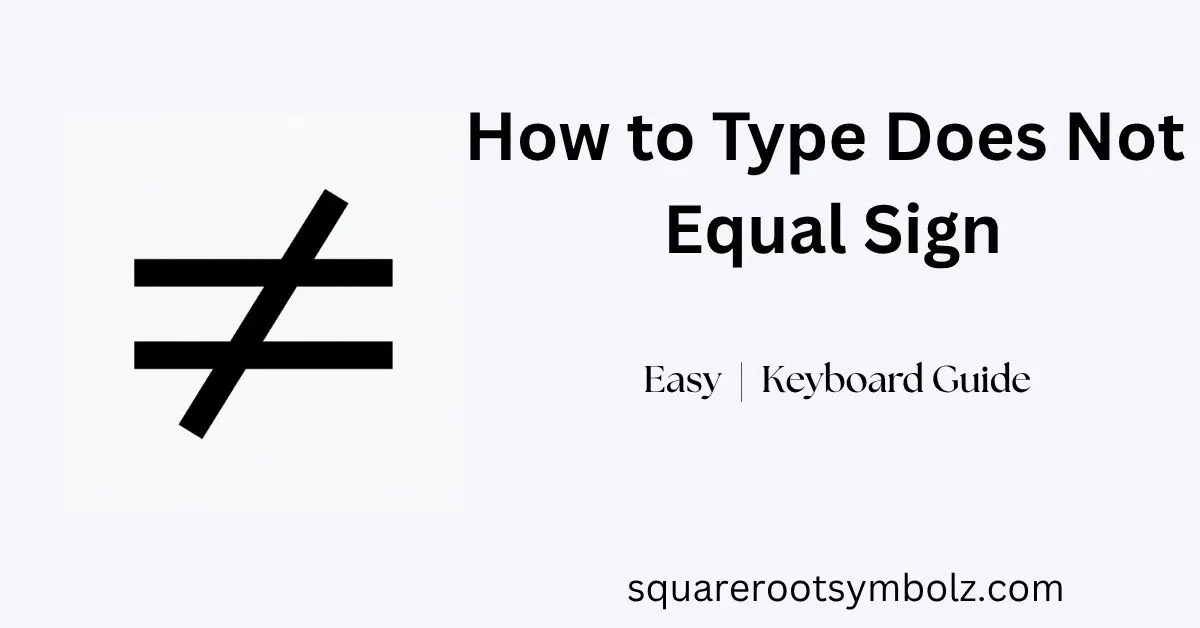
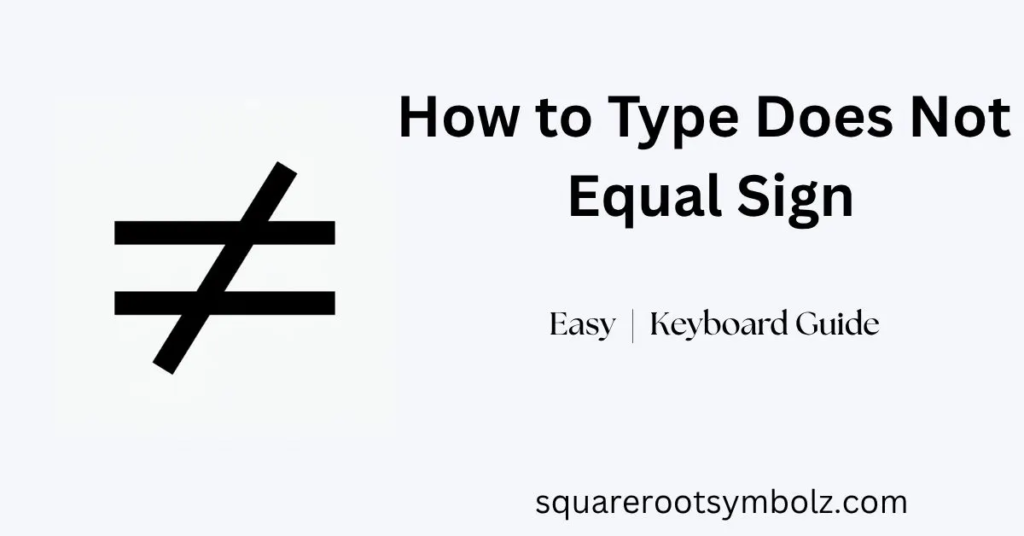
The does not equal sign (≠) is the mathematical symbol used to show that two values are different. On most standard keyboards, there is no dedicated key for it, so you need a shortcut, symbol menu, Unicode method, or copy-and-paste option.
If you’ve ever needed ≠ for a math equation, Word document, spreadsheet, school assignment, or online form and couldn’t find it, you’re not alone. After working with keyboard symbols and special characters, I’ve found that the best method depends mainly on your operating system and application. This guide shows the quickest options for Windows, Mac, Microsoft Word, Google Docs, Android, iPhone, HTML, and more.
Copy and Paste the How to Type Does Not Equal Sign Symbol
If you simply need the character right now, here it is:
≠
Copy it with Ctrl + C on Windows or Command + C on Mac, then paste it wherever you need it.
The symbol is called NOT EQUAL TO in Unicode and has the code point U+2260. Its decimal Unicode value is 8800, which is also commonly associated with the Windows Alt-code method.
| Property | Value |
| Symbol | ≠ |
| Name | Not Equal To |
| Unicode | U+2260 |
| Decimal | 8800 |
| HTML | ≠ |
| HTML Decimal | ≠ |
| LaTeX | \neq or \ne |
The visual symbol means that the values on either side are not equal. For example:
10 ≠ 7
That statement is true because 10 and 7 have different values.
How to Type the Does Not Equal Sign on a Windows Keyboard
On a Windows keyboard with a dedicated numeric keypad, one commonly used method is Alt + 8800. First make sure Num Lock is enabled, place the cursor where you want the symbol, hold Alt, type 8800 on the numeric keypad, and release Alt.
The important detail is the numeric keypad. The number row above the letters is not the same as the dedicated number pad for this method. Laptops without a physical keypad may therefore need another approach, such as Character Map or the Windows symbols panel.
Windows Alt Code
Alt + 8800 → ≠
Steps:
- Turn on Num Lock.
- Place the cursor where you want ≠.
- Hold Alt.
- Type 8800 on the numeric keypad.
- Release Alt.
If it doesn’t work, don’t assume you’ve done something wrong. Alt-code behavior can vary depending on the keyboard hardware, application, and Windows configuration.
How to Type the Does Not Equal Sign on a Mac Keyboard
Mac users have an especially simple shortcut: press Option + =. The equals key is the same key you normally use to type =. Hold Option and press it once, and macOS inserts ≠.
So the shortcut is:
⌥ Option + = → ≠
This is usually much easier than searching through a symbol library. If the shortcut is intercepted by a particular application, macOS also provides the Emoji & Symbols viewer, where you can search for not equal and insert the character.
How to Type the Does Not Equal Sign in Microsoft Word
Microsoft Word gives you several ways to insert ≠. One of the most useful is to type 2260 and press Alt + X. Word converts the Unicode hexadecimal value into the not-equal symbol.
You can also use Word’s built-in symbol menu:
Insert → Symbol → More Symbols → Mathematical Operators → ≠
For mathematical writing, Word’s equation editor provides another convenient option. Open an equation with Alt + =, type \neq, and press Space. Word can convert the command into ≠ when Math AutoCorrect is enabled.
Word’s Quickest Options
| Method | Input |
| Unicode conversion | 2260 + Alt + X |
| Math AutoCorrect | \neq + Space |
| Symbol menu | Insert → Symbol |
| Equation editor | Alt + =, then \neq |
This makes Word particularly flexible when you’re preparing equations, assignments, reports, or technical documents.
How to Type the Does Not Equal Sign in Google Docs
Google Docs doesn’t require a special keyboard key. Open your document and select:
Insert → Special characters
Then search for not equal or choose the appropriate mathematical symbol category. Google Docs will insert ≠ directly at your cursor.
For occasional use, this method is convenient because you don’t need to remember an Alt code. You can also copy ≠ from another document or webpage and paste it directly into Google Docs.
If you work with mathematical notation frequently, saving common symbols somewhere accessible can be faster than repeatedly searching the Special Characters window.
How to Insert the Does Not Equal Sign Using Character Map
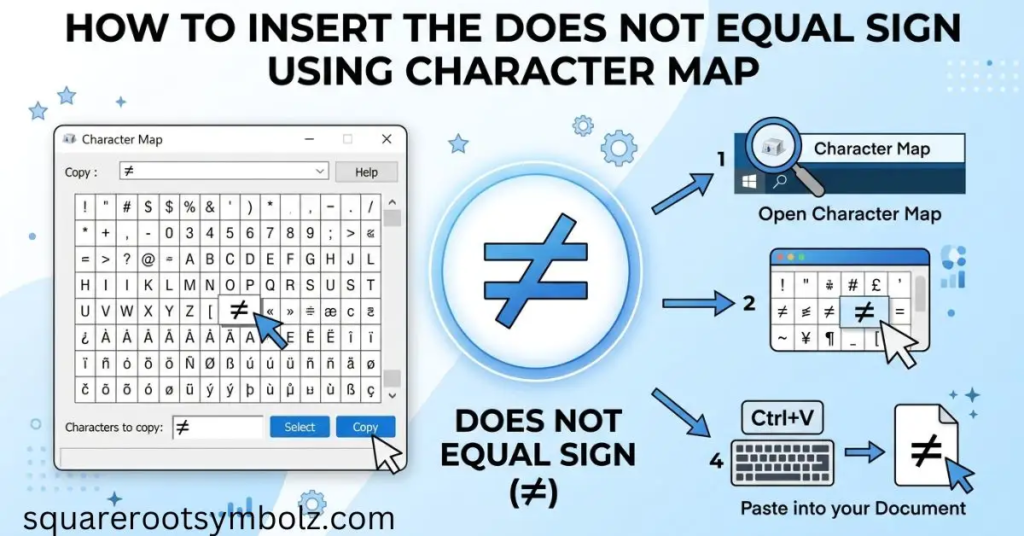
Windows Character Map is useful when your keyboard doesn’t have a numeric keypad or when the Alt-code method isn’t working. It lets you browse characters supported by installed fonts, select the equal sign symbol, copy it, and paste it into another application.
To find ≠:
- Open the Windows Start menu.
- Search for Character Map.
- Open the application.
- Enable Advanced view if necessary.
- Search for not equal.
- Select ≠.
- Click Select and Copy.
- Paste the character into your document.
Character Map is particularly useful because you can visually confirm the exact symbol before copying it. It also avoids the hardware limitations associated with a physical numeric keypad.
How to Type the Does Not Equal Sign on Android
On many Android phones using Gboard, you can access ≠ through the symbol keyboard. Open the symbols layer, locate the secondary mathematical symbols, and long-press the equals key. The ≠ character can appear as an alternate symbol.
The exact keyboard layout can vary slightly depending on your Android device and keyboard app. If you don’t see ≠, the simplest fallback is to copy the symbol from here:
≠
You can also pin frequently used symbols in a keyboard clipboard when your keyboard supports that feature.
How to Type the Does Not Equal Sign on iPhone or iPad
The standard iPhone and iPad keyboard does not provide ≠ as a permanently visible key. However, depending on the keyboard configuration, you may find it by accessing the mathematical symbols and long-pressing the equals key.
For frequent use, Text Replacement is even more convenient. Create a shortcut such as :neq: and assign ≠ as the replacement. Then typing the shortcut can automatically produce the mathematical symbol.
For one-time use, copying and pasting ≠ is still the fastest solution.
How to Type the Does Not Equal Sign as HTML Code
If you’re adding the symbol to a webpage, HTML provides several ways to represent it.
The named HTML entity is:
≠
You can also use the decimal reference:
≠
Or the hexadecimal reference:
≠
All three can render as ≠ in HTML.
For a normal webpage, ≠ is especially readable because someone examining the HTML can immediately understand that it represents the not equal symbol.
HTML and Unicode
| Format | Code |
| Symbol | ≠ |
| Named HTML | ≠ |
| Decimal HTML | ≠ |
| Hex HTML | ≠ |
| Unicode | U+2260 |
This makes the symbol easy to use in websites, documentation, educational pages, and technical content.
Common Problems and Troubleshooting When the Does Not Equal Sign Won’t Type
If ≠ doesn’t appear, the problem is usually related to the input method, keyboard hardware, application, or font rather than the symbol itself.
For Windows Alt codes, confirm that Num Lock is enabled and that you’re using the dedicated numeric keypad rather than the number row. Compact laptops and keyboards without a numpad may not support this method directly.
If the symbol appears as a square or question mark, try a Unicode-compatible font such as Arial, Calibri, Segoe UI, or Times New Roman. Font support can affect how mathematical characters are displayed.
Quick Troubleshooting Table
| Problem | Try this |
| Alt + 8800 doesn’t work | Turn on Num Lock |
| Laptop has no numpad | Use Character Map or Symbols panel |
| Symbol appears as a box | Change the font |
| Word shortcut fails | Try Insert → Symbol |
| Google Docs can’t find it | Insert → Special characters |
| Need it immediately | Copy ≠ |
| Mac shortcut fails | Use Emoji & Symbols |
| Need it in HTML | Use ≠ |
Conclusion
Learning how to type does not equal sign does not have to be complicated. Whether you need ≠ for a math equation, Microsoft Word document, Excel worksheet, Google Docs file, website, or school assignment, there is a simple method for almost every device. Windows users can try an Alt code or Character Map, Mac users can use Option + =, while mobile users can copy and paste the symbol or access it through their keyboard’s special characters.
Once you know the Unicode value U+2260, keyboard shortcuts, HTML codes, and application-specific methods, finding the does not equal sign becomes much easier. Keep ≠ handy for quick copy and paste, and use the method that best fits your everyday workflow.
FAQ Section
What is the does not equal sign?
The does not equal sign is ≠. It indicates that two values or expressions are different, such as 5 ≠ 3.
How do I type the does not equal sign on Windows?
With a numeric keypad, try Alt + 8800 with Num Lock enabled. You can also use Character Map or the Windows symbols panel.
How do I type ≠ on a Mac?
Press Option + = to insert the not equal symbol directly.
What is the Unicode for the does not equal sign?
The Unicode code point is U+2260, and its decimal value is 8800.
What is the HTML code for ≠?
You can use ≠, ≠, or ≠.
Is != the same as ≠?
They commonly represent the same logical idea, but they are not the same character. ≠ is the Unicode mathematical symbol, while != is a two-character operator used by many programming languages.
How do I type ≠ in Microsoft Word?
Type 2260 and press Alt + X, or use Insert → Symbol → More Symbols → Mathematical Operators.
What is the not-equal operator in Excel?
In Excel formulas, use <> rather than the literal ≠ operator. For example, =A1<>B1 tests whether two cells contain different values.

I’m the creator of SquareRootSymbolz.com, where I publish easy-to-understand guides on symbols, Unicode characters, Alt codes, keyboard shortcuts, and copy-and-paste text symbols. My goal is to provide accurate, well-researched, and user-friendly content that helps readers quickly find the information they need.