
The fastest diameter hotkey depends on the character you actually need. For the technical diameter sign ⌀, Microsoft Word can convert 2300 with Alt + X, while Mac users can use Character Viewer; Windows users may also encounter Alt + 0216, which produces Ø, a different Unicode character.
After working with keyboard symbols and technical notation, I know how frustrating it is when a shortcut produces the wrong character—or nothing at all. This guide brings together the practical keyboard shortcut, Alt code, Unicode, numeric keypad, Character Map, and Word shortcut methods so you can insert the correct diameter character without wasting time searching through symbol menus.
How to Type the Diameter Symbol
The diameter symbol ⌀ does not have a dedicated key on a standard US keyboard. That is why people searching for a diameter hotkey, diameter shortcut, or diameter keyboard symbol usually need an alternate input method. The best method depends on whether you are using Windows, macOS, Word, Google Docs, or another application.
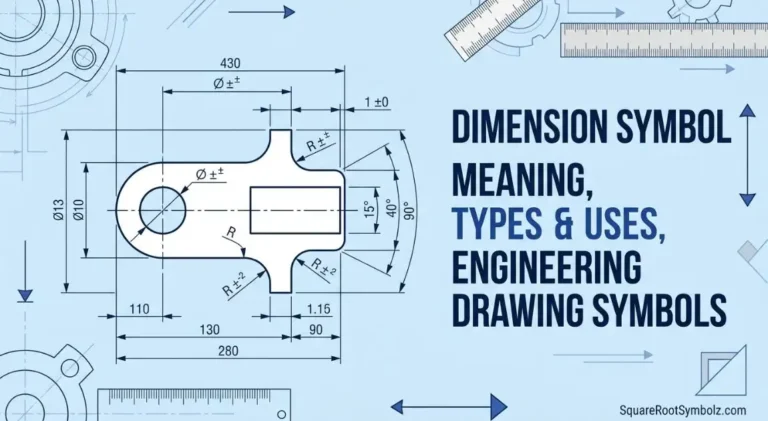
Before choosing a shortcut, identify whether you need ⌀ or Ø. The technical diameter sign is U+2300, while Ø is U+00D8, the Latin capital letter O with stroke. They look similar, but they are not the same Unicode character. That distinction is especially important in engineering drawings, CAD annotations, and technical specifications.

Windows Alt Code Method
On Windows, an Alt-code approach can be used with the numeric keypad. The technical diameter sign has decimal value 8960, corresponding to Unicode U+2300. Hold Alt, enter the numeric code using the keypad, and release Alt. Availability can depend on the application and keyboard configuration.
A separate shortcut, Alt + 0216, commonly produces Ø, not the Unicode diameter sign ⌀. This is why different websites may give different answers for the “diameter Alt code.” The difference is not necessarily a contradiction: they are referring to two visually similar but technically distinct characters.
Unicode Method
Unicode is often the cleanest approach when the application supports Unicode conversion. The technical diameter sign is U+2300, so in Microsoft Word for Windows you can type 2300 and press Alt + X to convert the code into ⌀. This method is especially useful on laptops without a physical numeric keypad.
The advantage of the Unicode method is precision. Instead of remembering several legacy-looking Alt codes, you know exactly which character you are requesting. For technical documents, websites, CAD notes, and digital specifications, U+2300 identifies the actual diameter sign rather than relying on a visually similar letter.
Character Map
Windows Character Map is a dependable fallback when a diameter hotkey does not work. Open Start, search for Character Map, locate the diameter sign, select it, and copy it. You can then paste ⌀ into a document, email, spreadsheet, or compatible technical application.
This method is particularly useful on keyboards without a numeric keypad. It also helps when an application handles keyboard codes differently. If you see a square, missing character, or unexpected letter after using a shortcut, Character Map gives you a visual way to select the exact Unicode character instead of guessing.
Keyboard Shortcut
There is no universal dedicated diameter hotkey on a standard US keyboard. The shortcut depends on the operating system and application. On Mac, Character Viewer provides a reliable route; in Word for Windows, 2300 + Alt + X converts the Unicode code into ⌀; and Windows Character Map works as a general fallback.
For quick everyday work, you may find copy and paste faster than memorizing codes. For repeated professional use, however, learning the appropriate Unicode or application shortcut saves time. If you frequently create drawings or specifications, it is worth testing your preferred method in the exact software you use.
Diameter Symbol Shortcut for Mac
Mac keyboards do not use Windows-style Alt codes for inserting special characters. A dependable approach is Character Viewer, opened with Control + Command + Space. Search for “diameter,” select ⌀, and insert it where the cursor is positioned. This method works without remembering a numeric code.
Some resources also list Option + Shift + O for Ø. That shortcut is useful when you specifically need the letter O with stroke, but it should not automatically be described as the technical Unicode diameter sign. For accurate engineering or technical work, use Character Viewer to verify that you are inserting ⌀ rather than Ø.
Diameter symbol shortcut in word
Microsoft Word gives you several ways to insert the diameter character. For the technical sign ⌀, type 2300, then press Alt + X. Word converts the Unicode code into the character. This is particularly convenient on laptops because it does not require a separate numeric keypad.
You can also use Insert → Symbol → More Symbols, locate the diameter sign, and select Insert. This is slower the first time but useful when you cannot remember the Unicode value. After inserting a symbol, Word may also make it easier to access again through recently used symbols.
Diameter symbol vs “O with a slash” (⌀ vs Ø) important difference
The most important technical distinction in this topic is ⌀ versus Ø. The character ⌀ is the Unicode Diameter Sign, U+2300. The character Ø is Latin Capital Letter O with Stroke, U+00D8. Their visual similarity causes many shortcut guides to describe Ø as the diameter symbol, but technically they are separate characters.
| Character | Unicode | Technical identity | Common situation |
| ⌀ | U+2300 | Diameter Sign | Technical/engineering notation |
| Ø | U+00D8 | Latin capital O with stroke | Letter; sometimes used as diameter substitute |
| ø | U+00F8 | Latin small o with stroke | Letter |
| ∅ | U+2205 | Empty Set | Mathematics |
This explains why Alt + 0216 appears in many diameter-shortcut guides: it produces Ø, which is commonly used as a diameter substitute in some software and older documentation. If your goal is character accuracy, however, ⌀ U+2300 is the dedicated Unicode diameter sign.
Method 1: Type the diameter symbol in Microsoft Word using “Alt + X” (best Word method)
For Word users, 2300 + Alt + X is one of the most useful methods to remember. Place the cursor where the symbol belongs, type 2300, then press Alt + X. Word converts the hexadecimal Unicode code into ⌀.
Steps (Word for Windows)
- Place the cursor where you want the symbol.
- Type 2300.
- Press Alt + X.
- Word converts the code to ⌀.
The method is especially convenient when you are working on a laptop with no numeric keypad. It also avoids the ambiguity surrounding Alt + 0216, because 2300 explicitly corresponds to the Unicode diameter sign rather than the visually similar O-with-stroke character.
Method 3: Type the diameter symbol on Mac (Character Viewer method)
On macOS, Character Viewer is the simplest reliable method when you need the exact diameter sign. Press Control + Command + Space to open it, search for “diameter,” and select ⌀. Depending on macOS and the available fonts, searching related descriptions such as “circle slash” may also help locate the character.
The advantage is visual confirmation. Instead of typing a code and hoping the application interprets it correctly, you can see the actual character before inserting it. This makes Character Viewer particularly useful when working with technical documents where confusing ⌀ with Ø could create formatting or notation problems.
Steps (Mac)
- Click where the symbol should appear.
- Press Control + Command + Space.
- Search for diameter.
- Select ⌀.
- Insert it into the document.
If the exact symbol does not appear immediately, try related search terms such as circle slash or slash circle. The available search labels can vary between applications and operating-system versions.
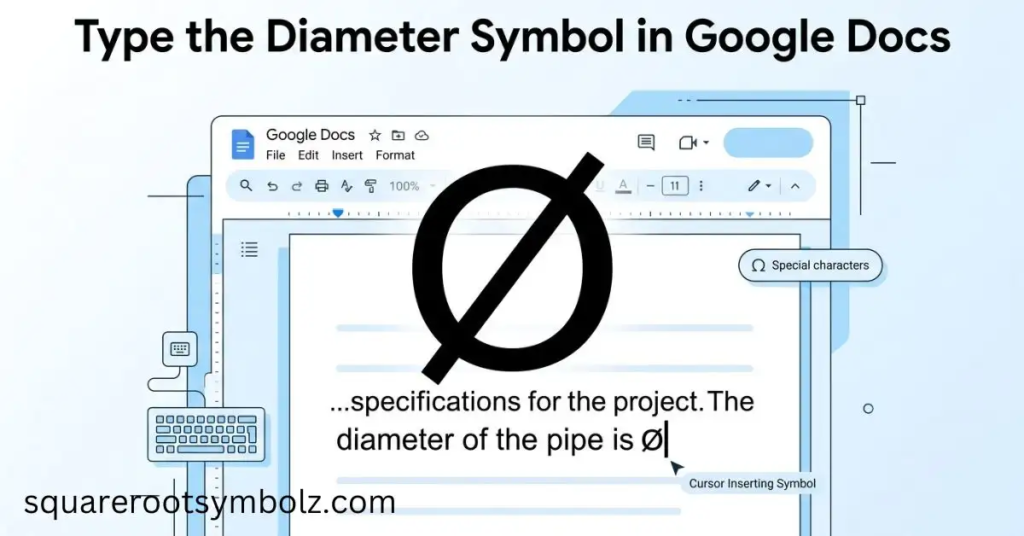
Method 6: Type the diameter symbol in Google Docs (Special Characters)
Google Docs has a built-in Special characters tool, making it unnecessary to memorize a diameter hotkey. Open Insert → Special characters, search for diameter, and select ⌀. This is particularly useful when working in a browser, collaborating on documents, or using a computer where traditional keyboard shortcuts are inconvenient.
If the search does not immediately return the desired symbol, the interface also supports drawing a character in the search area. You can try terms such as circle slash or empty set if the direct “diameter” search does not produce the expected result. Always visually verify that you selected the intended character.
Common problems (and quick fixes)
The most common diameter hotkey problems are surprisingly simple: the wrong character is being produced, the numeric keypad is unavailable, Num Lock is disabled, or the application does not support the shortcut. Windows Alt codes require the numeric keypad, while Unicode and character-picker methods provide useful alternatives when the traditional route fails.
Another frequent problem is confusing Ø with ⌀. If you typed Alt + 0216 and received Ø, your keyboard probably worked correctly the code identifies U+00D8. If you specifically need the technical diameter sign, use U+2300, Word’s 2300 + Alt + X method, Character Map, or Character Viewer instead.
| Problem | Likely cause | Best fix |
| Alt code does nothing | Numeric keypad unavailable | Use Unicode or Character Map |
| Wrong symbol appears | Code produces Ø rather than ⌀ | Use U+2300 |
| Laptop has no numpad | Hardware limitation | Use Word Alt + X or Character Map |
| Symbol appears as a box | Font/encoding support | Try another Unicode-compatible font |
| Google Docs cannot find it | Search variation | Try “diameter” or “circle slash” |
| Mac shortcut produces Ø | Shortcut targets O with stroke | Use Character Viewer |
If the symbol appears as a box or question mark, the problem may be font or character support rather than the keyboard shortcut itself. Testing the character in another application can help isolate the problem. For important technical documents, verify the actual Unicode character instead of relying only on how similar two symbols look.
Diameter Hotkey Quick Reference
| Platform | Recommended method | Result |
| Windows + Word | 2300 + Alt + X | ⌀ |
| Windows | Character Map | ⌀ |
| Windows numeric keypad | Alt + 8960 where supported | ⌀ |
| Windows | Alt + 0216 | Ø |
| Mac | Control + Command + Space → search diameter | ⌀ |
| Mac | Option + Shift + O | Ø |
| Google Docs | Insert → Special characters | ⌀ |
| Any device | Copy and paste | ⌀ |
The most important takeaway is that the fastest shortcut isn’t always the most technically precise shortcut. If you only need something visually similar, Ø may work in some environments. If you need the actual Unicode diameter sign, choose ⌀ U+2300.
Conclusion
The best diameter hotkey depends on your device and the exact character you need. For the technical diameter sign ⌀, Word users can type 2300 + Alt + X, Mac users can use Character Viewer, and Windows users can use Character Map when a keyboard shortcut is unavailable.
The biggest shortcut mistake is confusing ⌀ with Ø. Although they look alike, they have different Unicode identities. If accuracy matters, remember the simple rule: ⌀ = U+2300, the Diameter Sign; Ø = U+00D8, O with stroke. Once you know that distinction, choosing the right diameter shortcut becomes much easier.
FAQ Section
What is the diameter hotkey on Windows?
There is no single universal Windows key combination for the technical diameter sign. In Word, 2300 + Alt + X produces ⌀; Character Map is another reliable option. Alt + 0216 produces Ø instead.
What is the diameter shortcut on Mac?
Open Character Viewer with Control + Command + Space, search for “diameter,” and select ⌀. Option + Shift + O produces Ø, which is a different Unicode character.
What is the Alt code for the diameter symbol?
For the technical diameter sign ⌀, the decimal Unicode value is 8960, corresponding to U+2300. Alt + 0216 produces Ø, not U+2300.
What is the diameter symbol Unicode?
The technical diameter sign ⌀ is U+2300, named DIAMETER SIGN in Unicode. Its decimal value is 8960.
Why does Alt + 0216 give Ø?
Because 0216 corresponds to U+00D8, the Latin capital letter O with stroke. Ø is frequently used as a practical diameter substitute, but it is technically different from ⌀ U+2300.
How do I type the diameter symbol in Word without a numeric keypad?
Type 2300 and press Alt + X. Microsoft Word converts the Unicode code into ⌀, so you do not need a numeric keypad.
Why isn’t my diameter hotkey working?
On Windows, check that you are using the numeric keypad for Alt-code input and that Num Lock is enabled. If that fails, use Character Map or Unicode input instead.
Can I copy and paste the diameter symbol?
Yes. You can copy ⌀ and paste it into compatible documents, emails, spreadsheets, technical notes, and other applications. This is often the fastest option when you only need the character once.
Is ⌀ the same as Ø?
No. ⌀ is U+2300 DIAMETER SIGN, while Ø is U+00D8 LATIN CAPITAL LETTER O WITH STROKE. They look similar and Ø is sometimes used as a substitute, but they are different characters.

I’m the creator of SquareRootSymbolz.com, where I publish easy-to-understand guides on symbols, Unicode characters, Alt codes, keyboard shortcuts, and copy-and-paste text symbols. My goal is to provide accurate, well-researched, and user-friendly content that helps readers quickly find the information they need.