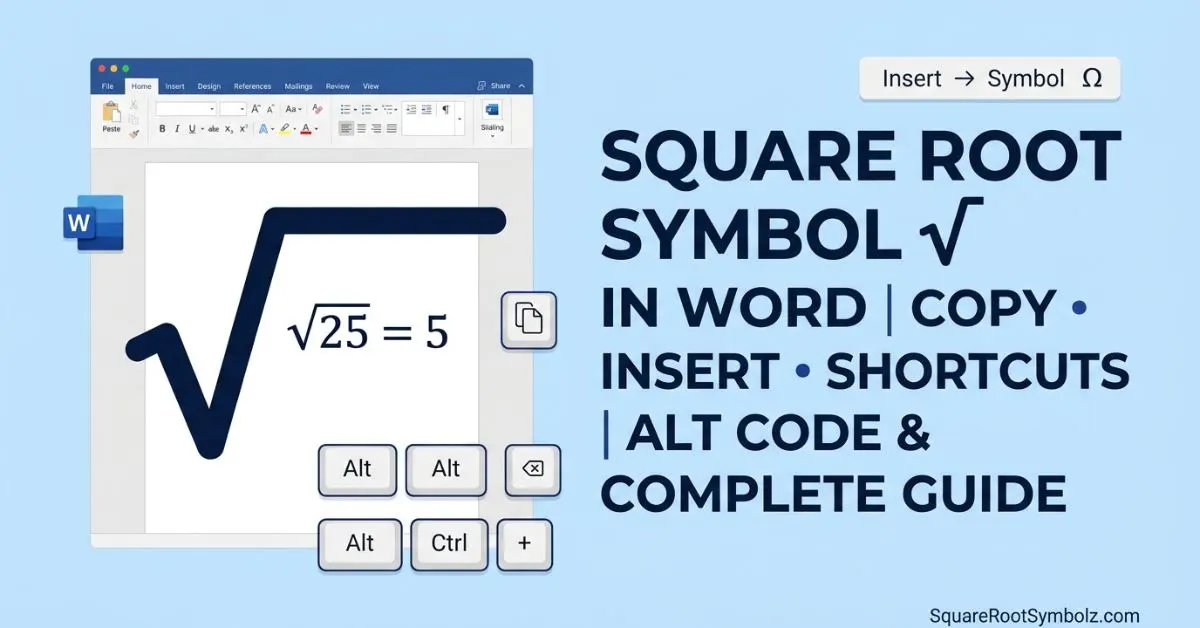
Typing the square root symbol (√) shouldn’t require a workaround, yet it’s one of the most searched formatting questions for Word, Excel, Google Docs, and mobile keyboards. This guide covers every method copy-paste, keyboard shortcuts, Alt codes, Unicode input, and the equation editor across every major device.
What Is the Square Root Symbol (√)?
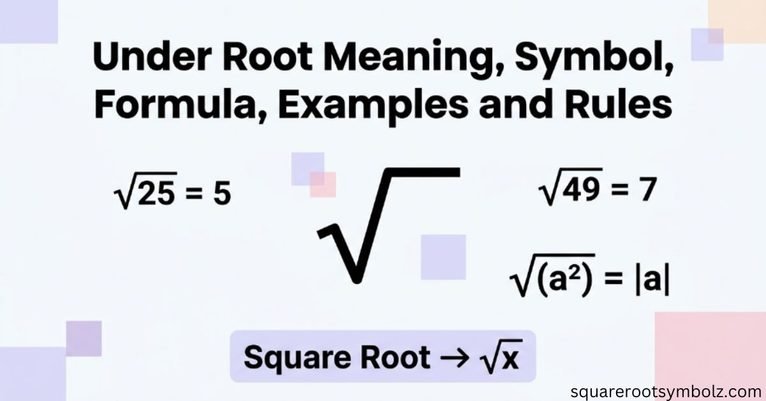
The square root symbol, officially called the radical sign, represents the value that, when multiplied by itself, produces the number underneath it. For example, √25 = 5, because 5 × 5 = 25. In Unicode, the symbol is encoded as U+221A and is part of the Mathematical Operators block. It’s distinct from the cube root (∛, U+221B) and fourth root (∜, U+221C) symbols, which extend the same concept to higher-order roots.
Copy and Paste the Square Root Symbol (√)
The fastest method for a single use: simply copy the symbol below and paste it wherever you need it.
√
Highlight it, press Ctrl+C (Windows/Chromebook) or Cmd+C (Mac), then paste with Ctrl+V or Cmd+V into Word, Excel, Google Docs, or any text field. This works identically across nearly every app because it copies the actual Unicode character, not an image.
How to Insert the Square Root Symbol in Microsoft Word
Word gives you three built-in menu paths:
- Insert tab > Symbol > More Symbols set the font to “(normal text),” change the subset dropdown to “Mathematical Operators,” scroll to √, and click Insert.
- Insert tab > Equation opens Word’s math input mode, where typing \sqrt auto-converts to a radical with an editable field underneath.
- AutoCorrect shortcut some Word installations recognize typing \surd inside an equation box and converting it automatically.
The Symbol dialog method is best for plain text; the Equation method is best when the root needs to sit over a specific number or expression.
Square Root Symbol Keyboard Shortcuts for Word
Word supports a direct keyboard shortcut using its Unicode input method:
- Type 221A, then immediately press Alt+X. Word converts the four characters into √.
This works anywhere inside a Word document no menus required. It’s the quickest method if you’re already typing and don’t want to break your flow.
Square Root Symbol Alt Code for Microsoft Word
Separately from the Alt+X method above, Windows supports classic numeric Alt codes using the keypad:
- Hold Alt and type 251 on the numeric keypad (not the top-row numbers), then release. This produces √ in many Windows apps, including Word, using the legacy OEM-US code page.
Note that laptops without a numeric keypad may need Num Lock enabled on the embedded keypad (often Fn + the numbers 7,8,9,u,i,o,j,k,l) for this to work.
How to Use Unicode to Type the Square Root Symbol
Since √ is Unicode character U+221A, any application that supports Unicode hex input can produce it:
- Word: 221A + Alt+X (as above)
- Linux (most distros): Ctrl+Shift+U, type 221a, then press Enter or Space
- General reference: the decimal Unicode value is 8730, useful for formulas like =UNICHAR(8730) in Excel
Insert the Square Root Symbol Using Word’s Equation Editor
For math homework, formulas, or scientific documents, the Equation Editor is the more robust option:
- Press Alt + = to open a new equation box inline.
- Type \sqrt and press space Word converts it into a radical symbol with a movable input box.
- Type your number or expression inside the box.
- Press the right arrow key to exit the radical once finished.
This method preserves proper mathematical formatting (correct sizing, spacing, and the horizontal bar extending over the full expression), which plain-text √ cannot do.
How to Type the Square Root Symbol on Windows
Outside of Word specifically, Windows offers a system-wide method:
- Open the Emoji & Symbol picker with Windows key + . (period), switch to the Omega/symbols tab, and search or scroll to √.
- Alternatively, use the Character Map app (search “charmap” in the Start menu), locate √, click Select, then Copy.
How to Type the Square Root Symbol on Mac
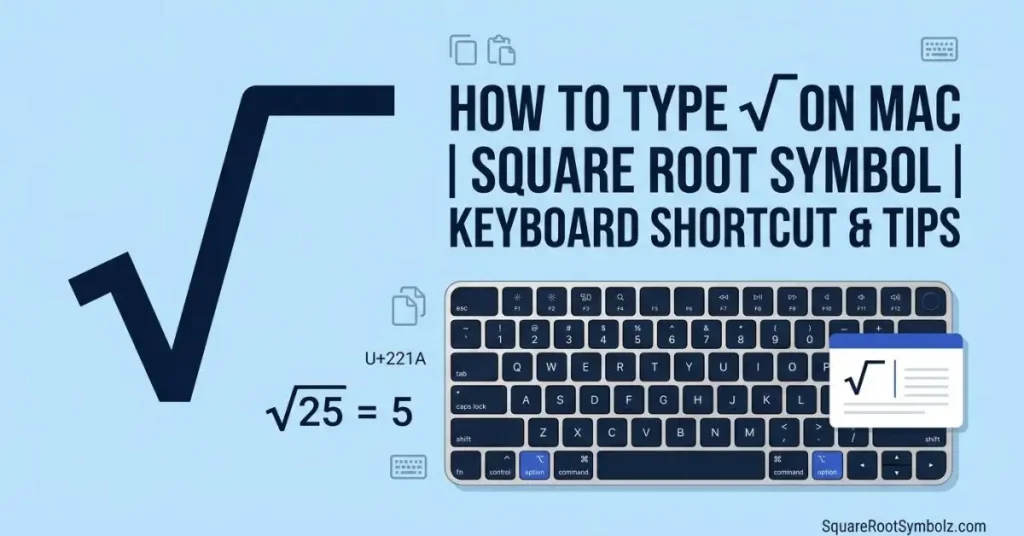
macOS has a dedicated shortcut for this exact symbol:
- Press Option + V. This produces √ instantly in any app, including Word for Mac, Pages, and Notes.
How to Type the Square Root Symbol on Chromebook
ChromeOS doesn’t have a single dedicated key, but two reliable options exist:
- Enable Unicode input: press Ctrl + Shift + U, type 221a, then press Enter/Space (must be enabled in ChromeOS input settings first).
- Use the built-in Emoji picker (Search/Launcher key + Shift + Space on newer ChromeOS versions) and search “square root.”
How to Type the Square Root Symbol on Android
On Gboard and most Android keyboards:
- Tap the symbols key (?123), then the =< page, where √ often appears directly, or
- Long-press the multiplication (×) or division (÷) key on some keyboard layouts, which reveals related math symbols including √.
- If neither works, use Gboard’s symbol search: tap the emoji/symbol icon and search “root.”
How to Type the Square Root Symbol on iPhone and iPad
iOS keyboards don’t expose √ directly, so the two practical routes are:
- Copy-paste the symbol from Notes, Safari, or this guide.
- Add a Text Replacement shortcut: go to Settings > General > Keyboard > Text Replacement, add “√” as the phrase and something like “sqrt” as the shortcut. Typing “sqrt” anywhere will then auto-suggest √.
How to Insert the Square Root Symbol in Word Online
The browser version of Word supports the same core methods as desktop:
- Insert > Symbol works identically, though the symbol picker is slightly condensed.
- Insert > Equation also supports typing \sqrt, since Word Online shares the same equation engine as desktop Word.
- The 221A + Alt+X shortcut works in most browsers as well, since it’s a Word-level function rather than an OS-level one.
How to Insert the Square Root Symbol in Google Docs
Google Docs has its own dedicated paths:
- Insert > Special characters, then search “square root” or draw the symbol in the handwriting pad.
- Insert > Equation, then use the Math operations dropdown, which includes a pre-built radical template.
- Copy-paste from this page works identically to Word.
How to Insert the Square Root Symbol in Excel
Excel doesn’t share Word’s Alt+X Unicode shortcut, so use one of these instead:
- Insert tab > Symbol, same process as Word set the subset to Mathematical Operators.
- Use a formula: =UNICHAR(8730) returns √ directly in a cell, which is useful for dynamically building labels.
- Copy-paste from Word, Google, or this article also works directly into any cell.
How to Insert the Square Root Symbol in PowerPoint
PowerPoint uses the same Office symbol engine as Word and Excel:
- Insert tab > Symbol > More Symbols, locate √ under Mathematical Operators.
- Insert tab > Equation also works if you need the root over a specific expression rather than a standalone character.
Square Root Symbol vs Radical Symbol
These terms are often used interchangeably, but there’s a subtle distinction:
| Term | What it refers to |
| Square root symbol (√) | The character itself, U+221A |
| Radical symbol | The broader family of root notation, including the horizontal bar (vinculum) extending over the expression |
| Radical expression | The full mathematical notation: symbol + bar + the number or expression underneath |
In casual writing, “square root symbol” and “radical symbol” both point to √ — the distinction matters mainly in formal math typesetting, where the “radical” includes the extended bar that a plain-text √ character doesn’t have.
Cube Root (∛), Fourth Root (∜), and Other Root Symbols
Beyond the square root, Unicode defines dedicated characters for common higher-order roots:
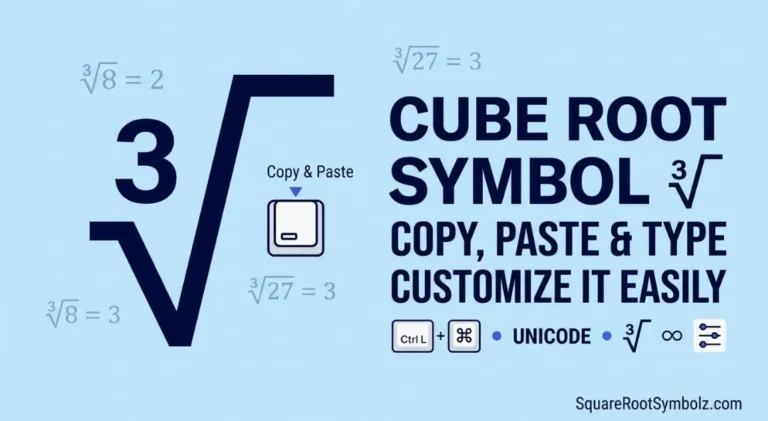
- Cube root: ∛ (U+221B)
- Fourth root: ∜ (U+221C)
For fifth roots and beyond, there’s no dedicated Unicode character these are typically written using the equation editor’s root template with a custom index (the small number indicating which root), since standalone symbols don’t exist past the fourth root.
Common Problems
- The symbol shows as a box or question mark: usually a font issue — switch to a Unicode-complete font like Calibri, Arial, or Times New Roman.
- Alt+X doesn’t work: make sure you typed exactly 221A (case-insensitive) with no extra characters, and that you’re inside a Word document, not another app.
- Alt code (Alt+251) doesn’t produce anything: your keyboard likely lacks a numeric keypad, or Num Lock is off on the embedded keypad.
- Copy-paste shows the wrong font style: paste using “Keep Text Only” (Ctrl+Shift+V in most apps) to strip formatting and preserve just the character.
Best Tips
- Use the Equation Editor whenever the root needs to visually extend over an expression (like √(x+1)) rather than sit next to plain text.
- Set up an iPhone text replacement or a Word AutoCorrect entry if you type √ frequently it saves far more time than menu navigation.
- When formatting for the web or emails, plain-text √ (copy-paste) is safer than an equation image, since it stays searchable and copyable.
FAQs
What is the square root symbol called?
It’s called the radical sign or radical symbol; the character itself (√) is sometimes just called the “root symbol.”
What is the Alt code for the square root symbol?
In Word, type 221A then press Alt+X. Using the numeric keypad, Alt+251 also works in many Windows applications.
How do I type √ on a laptop without a numeric keypad?
Use Word’s 221A + Alt+X method, or the Windows Emoji & Symbol picker (Windows key + .).
Is there a square root symbol on the standard keyboard?
No it’s not a native key on any standard physical keyboard, which is why shortcuts, Alt codes, or copy-paste are needed.
Conclusion
There’s no single “correct” way to type the square root symbol the best method depends on the app you’re using and how often you need it. For one-off use, copy-paste is fastest. For frequent use in Word, the 221A + Alt+X shortcut or a custom AutoCorrect entry will save the most time. For formal math formatting, the Equation Editor remains the only method that renders the root correctly over multi-character expressions.

I’m the creator of SquareRootSymbolz.com, where I publish easy-to-understand guides on symbols, Unicode characters, Alt codes, keyboard shortcuts, and copy-and-paste text symbols. My goal is to provide accurate, well-researched, and user-friendly content that helps readers quickly find the information they need.