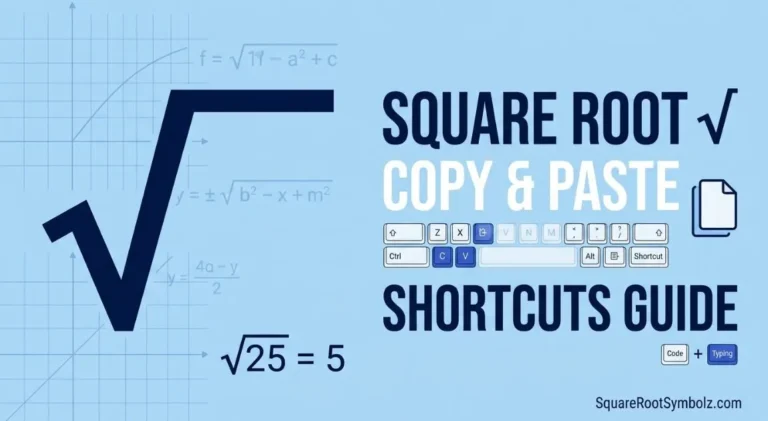
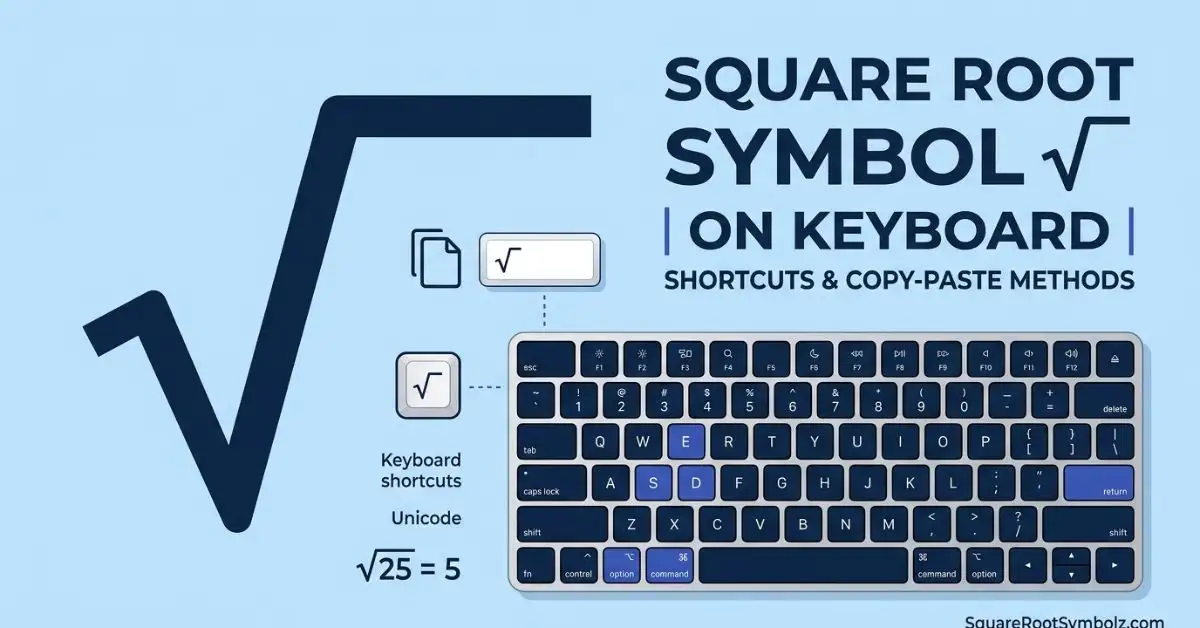
The square root symbol (√) isn’t on a standard keyboard, but there are fast, reliable ways to type it on Windows, Mac, Chromebook, Linux, Android, and iPhone plus alt codes, Unicode, and app-specific methods for Word, Excel, Google Docs, and more.
Copy and Paste the Square Root Symbol
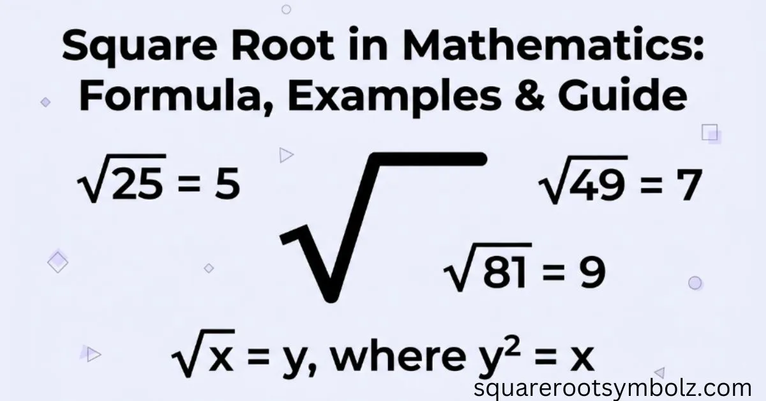
Just copy this: √
If you only need it once, that’s the fastest method on any device.
Quick Reference Table
| Platform / App | Shortcut | Alt Code | Unicode |
| Windows (numpad) | Alt + 251 | 251 | U+221A |
| Windows (Word/Office) | Type 221A, then press Alt+X | — | U+221A |
| Mac | Option + V | — | U+221A |
| Chromebook / Linux | Ctrl + Shift + U, type 221a, press Enter | — | U+221A |
| Android (Gboard) | Symbols key (=\<) → search “√” | — | U+221A |
| iPhone / iPad | No native shortcut — use Text Replacement (see below) | — | U+221A |
| HTML | √ or √ | — | U+221A |
| CSS | content: “\221A”; | — | U+221A |
| LaTeX | \sqrt{x} | — | — |
| Excel formula | =SQRT(A1) (calculates, doesn’t insert the symbol) | — | — |
How to Type √ on Windows
Two reliable options:
- Numpad Alt code: Make sure Num Lock is on, hold Alt, then type 251 on the numeric keypad. This works in most Windows apps, including Notepad and browsers. It won’t work from the number row above the letters it has to be the numpad.
- Unicode input (works everywhere, including Word): Type 221A, then immediately press Alt+X. Word (and some other Microsoft apps) converts the code into √. This method is more reliable on laptops without a numeric keypad.
If Alt+251 isn’t working, it’s almost always one of two things: Num Lock is off, or your laptop doesn’t have a physical or virtual numpad active (use the Alt+X method instead).
How to Type √ on a Mac
Press Option + V. That’s the entire shortcut no modifier combinations, no code to memorize. It works in any app that accepts standard text input, including Pages, Notes, and most browsers.
How to Type √ on Chromebook
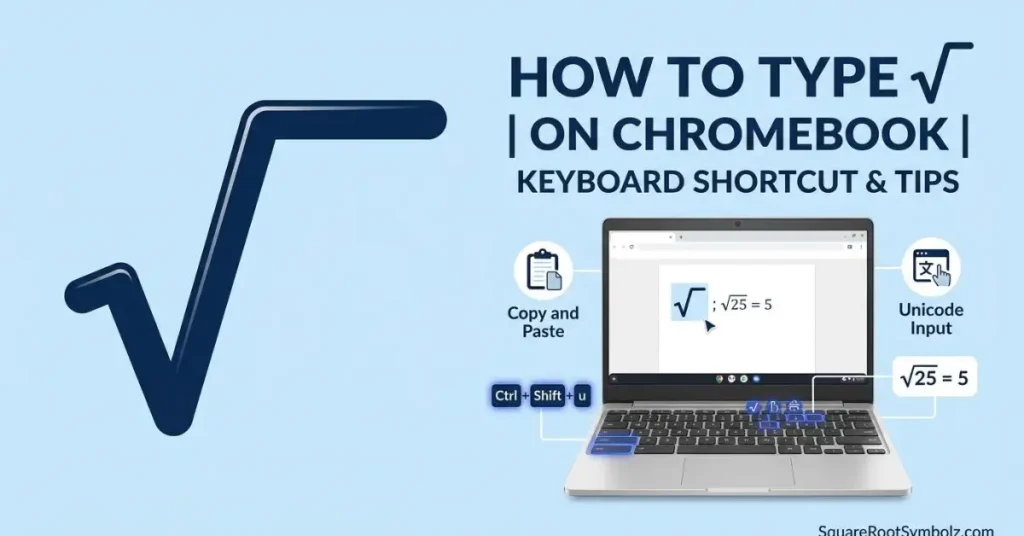
Use ChromeOS’s built-in Unicode input:
- Press Ctrl + Shift + U.
- Type 221a (the Unicode code point, without “U+”).
- Press Enter or the spacebar.
The symbol appears wherever your cursor is.
How to Type √ on Linux
Most Linux distributions with IBus or GTK input support the same method as Chromebook:
- Press Ctrl + Shift + U.
- Type 221a.
- Press Enter or Space.
If that doesn’t trigger anything, check whether IBus is your active input method (Settings > Region & Language), since some distros disable Unicode input by default.
How to Type √ on Android
Open Gboard (or your default keyboard), tap the symbols key (usually labeled =\<), and either scroll to find √ or use the keyboard’s built-in search/emoji search and type “square root.” Some keyboards also let you long-press a similar symbol to reveal √ as an option.
How to Type √ on iPhone and iPad
iOS has no built-in shortcut for √. Your two realistic options:
- Copy and paste it from this page or any source once, then paste it anywhere you need it.
- Set up a Text Replacement: Go to Settings > General > Keyboard > Text Replacement, tap +, paste √ into the “Phrase” field, and set a shortcut like sqrt. After that, typing sqrt anywhere on your device will auto-suggest √.
Square Root Alt Codes
“Alt code” specifically refers to the Windows numpad method: hold Alt and type a number on the numeric keypad while Num Lock is on.
- Square root (√): Alt + 251
- Cube root (∛): no standard numpad alt code use Unicode input instead (see below)
Alt codes above 255 (like the Unicode-based ones) generally don’t work through the classic numpad method that’s why Word’s Alt+X approach exists as a fallback for symbols with higher code points.
Unicode, HTML, CSS, and LaTeX Codes
- Unicode code point: U+221A
- HTML entity name: √
- HTML numeric entity: √
- CSS: content: “\221A”; (used in ::before/::after pseudo-elements)
- LaTeX: \sqrt{x} renders the radical with your expression under it
How to Insert the Square Root Symbol in Microsoft Word
- Fastest: type 221A, then press Alt+X.
- Menu method: go to Insert > Symbol > More Symbols, set the font to a Unicode-supporting font (Segoe UI Symbol or Arial), enter character code 221A, and click Insert.
- For actual math expressions (not just the symbol): use Insert > Equation, then the radical template, which gives you a proper editable square root with an adjustable expression underneath better than the standalone symbol if you’re writing formulas.
How to Insert the Square Root Symbol in Microsoft Excel
Excel doesn’t have a text shortcut like Word’s Alt+X. Use:
- Insert > Symbols > Symbol, character code 221A, same as Word.
- Or, if you actually want to calculate a square root rather than display the symbol, use the formula =SQRT(A1), which returns the numeric result rather than the √ character itself.
How to Insert the Square Root Symbol in Microsoft PowerPoint
Same as Word and Excel: Insert > Symbol, character code 221A. PowerPoint also supports the Alt+X trick inside text boxes, same as Word.
How to Insert the Square Root Symbol in Google Docs
Go to Insert > Special characters, then either draw the symbol with your mouse/trackpad in the drawing box or type “square root” in the search field. Click the result to insert it at your cursor.
How to Insert the Square Root Symbol in Google Sheets
Google Sheets uses the same Insert > Special characters dialog as Docs. For actual calculations, use the =SQRT(A1) function instead of inserting the symbol as text.
How to Insert the Square Root Symbol in Google Slides
Same method: Insert > Special characters, search “square root,” and click to insert.
Common Uses of the Square Root Symbol
- Math and algebra: expressing roots, simplifying radicals, and solving quadratic equations (the quadratic formula uses it directly)
- Engineering and physics: root-mean-square calculations, standard deviation, and signal processing
- Statistics: standard deviation is literally the square root of variance
- Spreadsheets: less common as a typed symbol, more often represented through the SQRT() function
- Scientific writing and textbooks: formatting equations for print or digital publishing
Square Root Symbol vs. Radical Symbol
These aren’t two different symbols — “radical symbol” is the general term for the √ mark used to express any root (square, cube, fourth, etc.), while “square root symbol” refers specifically to its most common use case: root index 2. When no small number appears in the notch of the radical, a square root (index 2) is assumed by default.
Square Root Symbol vs. Cube Root Symbol
- Square root: √ (U+221A) implies index 2, e.g., √9 = 3
- Cube root: ∛ (U+221B) explicitly shows a small 3 in the radical’s notch, e.g., ∛27 = 3
Visually, the cube root symbol is the same radical shape with a small “3” added to the top-left notch. There’s no dedicated Alt-code shortcut for ∛ on Windows numpad; use the Unicode/Alt+X method (221B then Alt+X in Word) or copy-paste it directly.
Common Problems and Troubleshooting
- Alt+251 does nothing: Check that Num Lock is on and that you’re using the numeric keypad, not the number row. Laptops without a physical numpad may need Fn+numpad-overlay keys, or should use the Alt+X method instead.
- Alt+X converts the wrong thing in Word: Make sure your cursor is directly after the code 221A with no extra space, then press Alt+X.
- Symbol shows as a box (□) or question mark: The font you’re using doesn’t include that Unicode character. Switch to a font with broad Unicode support, like Arial, Calibri, or Segoe UI Symbol.
- Pasted symbol looks different across apps: This is a font-rendering difference, not a wrong character the underlying Unicode value (U+221A) is the same everywhere.
Related Mathematical Symbols
- Cube root: ∛ (U+221B)
- Fourth root: ∜ (U+221C)
- Plus-minus: ± (U+00B1)
- Infinity: ∞ (U+221E)
- Pi: π (U+03C0)
- Sum: ∑ (U+2211)
- Not equal: ≠ (U+2260)
Final Thoughts
There’s no universal keyboard shortcut for √ across every device, but each platform has a fast, reliable method: Alt+251 or Alt+X on Windows, Option+V on Mac, Ctrl+Shift+U on Chromebook and Linux, the symbols keyboard on Android, and text replacement on iPhone. For quick one-off use, copying and pasting the symbol is still the simplest option on any device.
FAQs
Is there a dedicated square root key on any keyboard?
No standard physical keyboard includes a dedicated √ key. Some scientific calculators do, but keyboards rely on shortcuts, alt codes, or copy-paste.
What is the fastest way to type √ if I only need it once?
Copy and paste it for one-off use, it’s faster than memorizing any shortcut.
Does the square root symbol work the same in all fonts?
The character (U+221A) is universal, but its exact appearance (thickness, size, slant) varies slightly by font. If it renders as a box, the font lacks that glyph switch fonts.
Can I use the SQRT function instead of the symbol in Excel or Google Sheets?
Yes if you need Excel or Sheets to calculate a square root rather than display the character, use =SQRT(A1) instead of inserting the symbol as text.
Why doesn’t Alt+251 work on my laptop?
It requires Num Lock on and a working numeric keypad (physical or Fn-activated overlay). If your device doesn’t support that, use the Unicode Alt+X method in Word, or copy-paste the symbol directly.

I’m the creator of SquareRootSymbolz.com, where I publish easy-to-understand guides on symbols, Unicode characters, Alt codes, keyboard shortcuts, and copy-and-paste text symbols. My goal is to provide accurate, well-researched, and user-friendly content that helps readers quickly find the information they need.