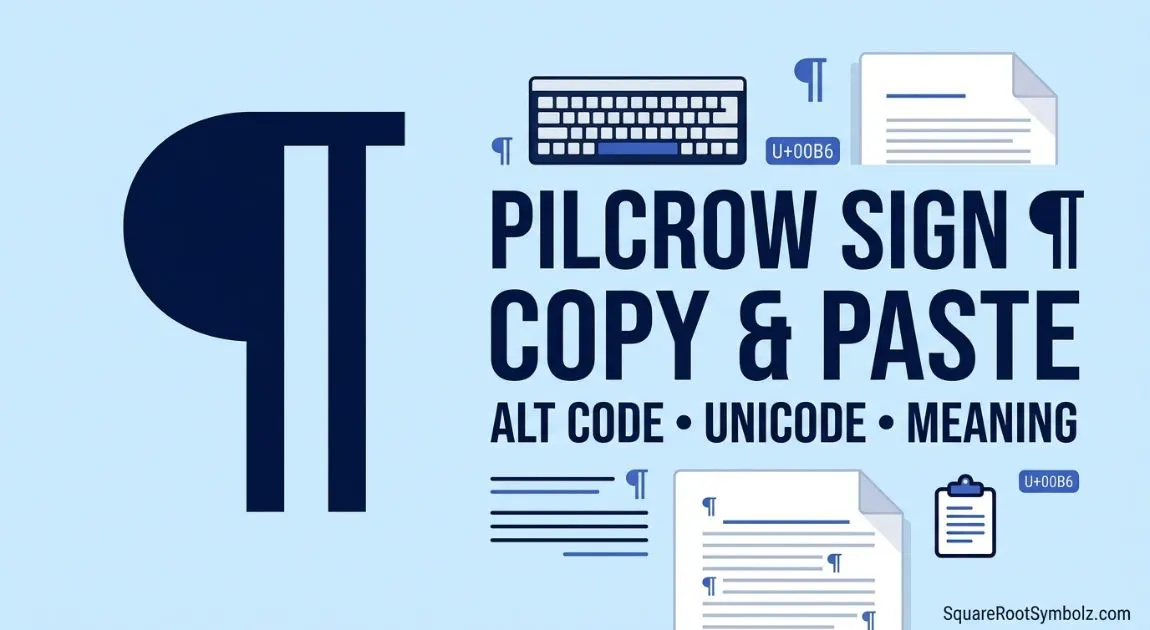
The Pilcrow Sign (¶), also known as the paragraph mark, is a special typographic symbol used to indicate the beginning of a paragraph or display paragraph formatting in word processors. Whether you need to copy and paste the Pilcrow sign, find its Alt Code, Unicode, HTML entity, or learn how to type it on Windows, Mac, or mobile devices, this guide covers everything in one place.
You’ll also discover where the Pilcrow symbol is used, how to insert it in Microsoft Office and Google Docs, and how it differs from similar symbols. If you’re looking for a quick answer or a complete reference, this guide has you covered.

Pilcrow Sign ¶ Copy and Paste
Need the Pilcrow Sign instantly? Copy it from the box below.
Quick Copy Box
| Symbol | Name | Copy |
| ¶ | Pilcrow Sign | ¶ |
| ¶ | Paragraph Mark | ¶ |
Plain Text Examples
¶
Section One ¶ Section Two
Title¶
Paragraph starts here.
Different Variations
Although ¶ is the standard Pilcrow symbol, you may also encounter related paragraph formatting symbols:
- ¶ Standard Pilcrow Sign
- ❡ Reversed Pilcrow
- § Section Sign (commonly confused with Pilcrow)
Tip: The Pilcrow Sign is primarily a formatting and editing symbol rather than decorative text.
What Is the Pilcrow Sign (¶)?

The Pilcrow Sign (¶) is a typographic character used to represent the beginning of a new paragraph. It is commonly known as the paragraph mark and has been used in manuscripts and printed documents for centuries.
Today, the Pilcrow is most familiar in word processors such as Microsoft Word, where it displays hidden formatting marks when the Show/Hide option is enabled.
What Does the Pilcrow Sign Mean?
The Pilcrow indicates:
- A paragraph break
- Hidden formatting in documents
- Editing and proofreading marks
- Document structure
- Text organization
Unlike punctuation marks, the Pilcrow is generally not printed in the final version of a document. Instead, it serves as a visual aid for writers, editors, and publishers.
Brief History
The Pilcrow originated in medieval manuscripts, where scribes used paragraph symbols to separate ideas before indentation became common. Over time, it evolved into the modern ¶ symbol recognized worldwide.
The name Pilcrow comes from the Old French word pelagraphe, which itself evolved from the Greek term meaning “paragraph.”
Why Is It Called the Paragraph Mark?
Because its primary purpose is to identify the start of a paragraph. Modern software uses the Pilcrow to display formatting characters that are normally hidden.
You will often see it when editing documents in:
- Microsoft Word
- Microsoft Outlook
- Google Docs
- Desktop publishing software
- Professional editing tools
Pilcrow Sign Alt Code, Unicode & HTML Codes
If you’re working with websites, programming, typography, or document editing, these codes make it easy to insert the Pilcrow Sign.
| Property | Value |
| Symbol | ¶ |
| Name | Pilcrow Sign |
| Unicode | U+00B6 |
| Unicode Decimal | 182 |
| Alt Code (Windows) | Alt + 0182 |
| HTML Entity | ¶ |
| HTML Decimal | ¶ |
| HTML Hex | ¶ |
| CSS Escape | \00B6 |
| UTF-8 Encoding | C2 B6 |
| ASCII | Not part of the original 7-bit ASCII set; available in extended character sets |
Is the Pilcrow Part of ASCII?
No. The Pilcrow Sign (¶) is not included in the original 7-bit ASCII standard, which contains only 128 basic characters.
However, it appears in several extended ASCII code pages and is officially defined in the Unicode Standard as U+00B6.
This is why Unicode or HTML entities are the preferred methods for displaying the symbol consistently across devices and websites.
HTML Example
¶
Output:
¶
Unicode Example
U+00B6
CSS Example
content: “\00B6”;
These formats are commonly used by developers, designers, and publishers when displaying the Pilcrow symbol on websites or in applications.
How to Type the Pilcrow Sign on Any Device

The method for typing the Pilcrow Sign (¶) depends on your operating system and keyboard. Below are the easiest ways to insert it across different devices.
Windows
The fastest method on Windows is using the Alt Code.
- Turn on Num Lock.
- Hold the Alt key.
- Type 0182 on the numeric keypad.
- Release the Alt key.
Result: ¶
You can also insert it using the Windows Character Map or the Emoji & Symbols panel in newer versions of Windows.
Mac
On macOS, open the Character Viewer:
- Press Control + Command + Space.
- Search for Pilcrow or Paragraph.
- Double-click the symbol to insert it.
Mac users can also access the symbol through applications like Pages, Word, and TextEdit using the Character Viewer.
Chromebook
Chromebooks don’t have a dedicated Alt Code system. You can:
- Copy and paste the symbol (¶)
- Use the built-in Unicode or special character picker (where available)
- Insert it through Google Docs’ Special Characters tool
Linux
Linux users can insert the Pilcrow Sign using Unicode input methods supported by their desktop environment.
A common method is:
- Press Ctrl + Shift + U
- Type 00B6
- Press Enter
The symbol ¶ will appear.
How to Type the Pilcrow Sign on Any Device (Continued)
Android
Android keyboards usually don’t include the Pilcrow Sign (¶) on the main layout, but you can still insert it using one of these methods:
Method 1: Copy and Paste
- Copy the symbol: ¶
- Paste it wherever you need it.
Method 2: Character Apps
Many Unicode or symbol keyboard apps allow you to search for “Pilcrow” or “Paragraph Sign.”
iPhone & iPad
The iOS keyboard doesn’t have a dedicated Pilcrow key.
You can:
- Copy and paste ¶
- Use a text replacement shortcut
- Insert it from a Unicode or symbol keyboard app
Tip: If you use the symbol frequently, create a Text Replacement shortcut in Settings → General → Keyboard → Text Replacement.
How to Insert the Pilcrow Sign in Popular Apps
Different applications provide different ways to insert the Pilcrow Sign. Here are the easiest methods.
Microsoft Word
There are several ways to insert the Pilcrow symbol:
Method 1: Alt Code
Press Alt + 0182 using the numeric keypad.
Method 2: Insert Symbol
- Go to Insert
- Select Symbol
- Choose More Symbols
- Find Pilcrow Sign (¶)
- Click Insert
Method 3: Show Formatting Marks
Word also uses the Pilcrow as a formatting mark.
Go to:
Home → Paragraph → Show/Hide (¶)
This displays hidden paragraph breaks, spaces, tabs, and other formatting characters.
Microsoft Excel
Excel supports several methods:
- Alt + 0182
- Insert → Symbol
- Copy and paste
The symbol can be used inside cells, formulas (as text), comments, and reports.
Microsoft PowerPoint
To insert the Pilcrow in PowerPoint:
- Press Alt + 0182
- Use Insert → Symbol
- Copy and paste the character
It is commonly used in typography presentations or document formatting examples.
Microsoft Outlook
Outlook supports:
- Alt Code
- Symbol menu
- Copy and paste
If formatting marks are enabled while composing emails, you may also see Pilcrow symbols representing paragraph breaks.
Google Docs
Google Docs provides an easy built-in option.
- Open Insert
- Select Special Characters
- Search for Pilcrow or Paragraph
- Click the symbol to insert it
You can also simply paste ¶ into your document.
Google Sheets
Google Sheets does not include a dedicated symbol picker, but you can:
- Copy and paste ¶
- Use the CHAR() function where supported
- Insert it from another document
Pilcrow Sign Uses and Examples
Although many people only notice the Pilcrow in Microsoft Word, it has several practical uses across writing, publishing, and digital typography.
Editing and Proofreading
Editors use the Pilcrow to identify paragraph breaks and formatting issues.
Example:
Introduction¶
Body Paragraph¶
Conclusion
This makes hidden formatting visible during editing.
Word Processors
Applications such as:
- Microsoft Word
- LibreOffice Writer
- OpenOffice Writer
- Apple Pages
display Pilcrow marks when formatting characters are turned on.
This helps users:
- find extra paragraph breaks
- remove blank lines
- fix spacing problems
- improve document layout
Typography
Professional typographers use the Pilcrow when discussing:
- paragraph structure
- text flow
- document hierarchy
- page layout
It serves as a visual reference rather than printed content.
Publishing
Book publishers and magazine editors use paragraph marks during manuscript editing before final publication.
The Pilcrow helps ensure consistent formatting throughout long documents.
Academic Writing
Researchers, students, and professors often use paragraph marks while reviewing theses, dissertations, and journal articles.
Visible formatting helps identify:
- unintended blank paragraphs
- inconsistent spacing
- formatting errors
Technical Documentation
Technical writers rely on paragraph marks when creating:
- software documentation
- user manuals
- API documentation
- engineering reports
- training guides
Showing hidden formatting reduces errors before publishing.
Practical Examples
| Example | Purpose |
| ¶ Start a new paragraph | Indicates a paragraph break |
| Editing drafts | Displays hidden formatting |
| Word documents | Shows paragraph marks |
| HTML references | Represents the paragraph symbol |
| Typography lessons | Explains paragraph structure |
Pilcrow Sign vs Similar Symbols
Several symbols look similar to the Pilcrow Sign but have completely different meanings. Understanding the difference helps avoid confusion in writing, legal documents, and publishing.
| Symbol | Name | Primary Use |
| ¶ | Pilcrow Sign | Paragraph mark and document formatting |
| § | Section Sign | References legal sections, chapters, and statutes |
| ❡ | Reversed Pilcrow | Historical paragraph symbol used in older typography |
| • | Bullet | Creates unordered lists |
| ⁋ | Reversed Paragraph Sign | Rare typographic character used in specialized texts |
Pilcrow (¶)
- Represents a paragraph.
- Used in word processors and editing.
- Commonly called the paragraph mark.
Section Sign (§)
The Section Sign is widely used in:
- legal documents
- laws and regulations
- contracts
- academic references
Example:
§ 25 of the Civil Code
Unlike the Pilcrow, it refers to a numbered section rather than a paragraph.
Reversed Pilcrow (❡)
The Reversed Pilcrow is a historical typographic symbol that appears in some older books and specialized publishing contexts.
Today, it is rarely used outside typography research and historical documents.
Bullet (•)
Bullets organize lists.
Example:
- Apple
- Orange
- Mango
They are not paragraph indicators.
Which Symbol Should You Use?
Use ¶ when referring to:
- paragraphs
- document formatting
- proofreading
- hidden formatting marks
Use § when citing:
- legal sections
- regulations
- chapters
- statutes
Common Questions About the Pilcrow Sign
The Pilcrow Sign (¶) often raises questions because it appears in word processors, editing software, and typography references. Here are the most common questions users ask.
What Does the Pilcrow Sign (¶) Mean?
The Pilcrow Sign represents the beginning of a paragraph. It is commonly used as a paragraph mark to show hidden formatting in documents and help writers, editors, and publishers organize text.
Why Does the Pilcrow Sign Appear in Microsoft Word?
If you see ¶ throughout your document, the Show/Hide Formatting Marks feature is enabled. Word displays paragraph breaks, spaces, tabs, and other hidden formatting characters to make editing easier.
To turn it off:
- Open Microsoft Word.
- Go to the Home tab.
- Click the ¶ Show/Hide button in the Paragraph group.
The symbols will disappear from the editing view but will not be printed.
How Do I Hide Paragraph Marks in Word?
To hide paragraph marks:
- Open Home.
- Click the ¶ Show/Hide button.
- Or press Ctrl + Shift + 8 on Windows.
This toggles formatting marks on and off.
Is the Pilcrow Sign an Emoji?
No. The Pilcrow Sign (¶) is a Unicode text symbol, not an emoji. Although some websites categorize it with symbols and emojis for convenience, it is primarily used in typography, editing, and document formatting.
Can I Use the Pilcrow Sign in HTML?
Yes. HTML supports the Pilcrow Sign using the following entity:
¶
You can also use:
¶
or
¶
These methods display the ¶ symbol correctly on web pages.
Is the Pilcrow Sign Part of ASCII?
No. The original 7-bit ASCII character set does not include the Pilcrow Sign. It is part of the Unicode Standard (U+00B6) and appears in many extended character sets.
Where Is the Pilcrow Sign Commonly Used?
The Pilcrow Sign is widely used in:
- Microsoft Word
- Google Docs
- Desktop publishing software
- Proofreading
- Typography
- Academic writing
- Technical documentation
- Document editing
It helps users identify paragraph breaks and hidden formatting.
Related Symbols and Characters
If you’re interested in the Pilcrow Sign, you may also find these symbols useful.
| Symbol | Name | Common Use |
| § | Section Sign | Legal documents, sections, statutes |
| © | Copyright Symbol | Copyright notices |
| ® | Registered Trademark | Registered brands |
| ™ | Trademark Symbol | Unregistered trademarks |
| ° | Degree Symbol | Temperature and angles |
| • | Bullet Point | Lists and formatting |
| ❡ | Reversed Pilcrow | Historical typography |
| ¶ | Pilcrow Sign | Paragraph mark and formatting |
These symbols are frequently used in publishing, legal writing, web development, and professional documents. Linking related symbol pages together also helps build topical authority for your website.
Conclusion
The Pilcrow Sign (¶) is more than just a paragraph mark it is an essential symbol for document formatting, proofreading, typography, and professional editing. Whether you need to copy and paste the Pilcrow Sign, use its Alt Code, insert it with Unicode or HTML entities, or type it on Windows, Mac, Chromebook, Linux, Android, or iPhone, understanding how it works can save time and improve document accuracy.
This guide covered everything from the Pilcrow Sign’s meaning and history to keyboard shortcuts, HTML codes, Microsoft Office, Google Docs, practical uses, comparisons with similar symbols, and answers to the most common questions. Bookmark this page whenever you need a quick reference for the ¶ Paragraph Mark or other related typographic symbols.
FAQs
What is the Pilcrow Sign used for?
The Pilcrow Sign (¶) marks the beginning of a paragraph and displays hidden formatting in word processors such as Microsoft Word.
What is the Alt Code for the Pilcrow Sign?
The Windows Alt Code is Alt + 0182 using the numeric keypad.
What is the Unicode value of the Pilcrow Sign?
The Unicode code point for the Pilcrow Sign is U+00B6.
What is the HTML entity for the Pilcrow Sign?
Use ¶, ¶, or ¶ to display the Pilcrow Sign in HTML.
Can I copy and paste the Pilcrow Sign?
Yes. Simply copy ¶ from this page and paste it into your document, website, email, or application.
Why do I see paragraph marks in Word?
Paragraph marks appear when Show/Hide Formatting Marks is enabled. They help you view spaces, tabs, and paragraph breaks while editing.
Does the Pilcrow Sign print on paper?
No. The visible ¶ formatting marks are for editing only and do not appear in the printed document unless inserted as normal text.
Is the Pilcrow Sign the same as the Section Sign (§)?
No. The Pilcrow Sign (¶) indicates paragraphs, while the Section Sign (§) is used to reference legal sections, statutes, and chapters.

I’m the creator of SquareRootSymbolz.com, where I publish easy-to-understand guides on symbols, Unicode characters, Alt codes, keyboard shortcuts, and copy-and-paste text symbols. My goal is to provide accurate, well-researched, and user-friendly content that helps readers quickly find the information they need.